
Forums, Topics, and Posting
This guide walks the geography of forums and topics, and what to do once there's a cursor blinking in a reply box.
Looking for the editor itself, the how of making text bold, dropping in an image, or switching to Markdown? That all lives over in The Post Editor. This guide is about posting; that one's about writing.
The lay of the land
Myth-Weavers has two flavors of forum:
- Game forums belong to a single game. The GM creates them when the game spins up — usually Announcements, OOC, In-Character, Characters — and only that game's members can see and post (unless the game's visibility is set wider). This is where your campaign lives.
- Community forums are site-wide: General Discussion, Tabletop RPG chatter, recruitment talk, site feedback. Open to everyone with an account. This is where you go when the game is between scenes and you want to talk shop.
Within each forum, conversations live in Topics (threads, by another name), and each topic is a chronological string of Posts.
Inside a game
Open a game, whether from the My Games sidebar on the home page or out of the Game Directory, and you'll arrive at the game home at /games/<slug>.If the game has a cover image larger than its header card, a maximize icon appears in the card's top-right corner. You can click it to view the full, uncropped image. The tabs along the top are your table of contents:
- Game — the landing tab. Name, description, GM, roster, recent activity, any pinned announcements.
- Forums — the list of the game's forums. The most-visited tab during normal play.
- Members — who's at the table, what role they play.
- Characters — the character roster; see Characters, Resources, and Maps.
- Resources — wiki Pages, Blogs, Downloads, Maps, Campaign Calendars the GM has linked.
- Calendar — the game's real-world schedule: sessions, deadlines and planned absences (see Calendar & Notifications). In-world campaign calendars are under Resources.
- Recruitment — open advertisements, if the GM is recruiting; see Recruitment & Application Guide.
- Applications — your in-flight application, if you have one.
[GM]
As GM, you'll see extra tabs and actions: Edit Game, Visibility, Integrations, Announcements, and Recycle Bin, plus the admin controls on the Members tab (kick, role change, transfer ownership). The Game Master's Guide covers all of them in depth.
You can deep-link to a specific tab with ?tab=<name> — e.g., /games/<slug>?tab=resources.
Set your own landing page. Tired of clicking through to your group's main thread every time? On any forum, topic, or tab, click the house button (next to Follow) to make that your landing spot for the game. Next time you open it from My Games or the Dashboard, you go straight there. Click the house again to clear it and return to the game's default. It's per-game and personal to you; if the GM has set a default forum, your choice takes precedence.
Make the tab bar your own. Click the sliders button at the end of the game's tab bar to open My tabs. Drag tabs into the order you like and hide the ones you don't use. Add a tab puts something you visit often on the bar:
- Pin a forum — any forum in the game you can read
- Pin a topic — search the game's topics by title
- Pin a resource — a Page, Blog, Map, Download or Campaign Calendar
- Pin a Resources folder — see Finding your way around Resources
- Add a link — any web address, such as your group's character-sheet site
Only you see these changes. A pinned forum, topic or folder is named after it and follows if it's renamed. If it's deleted, or you lose access to it, the tab goes away.
Under the hood: how deep-link URLs work
The tab query parameter accepts one of: game (the default), forums, members, characters, resources, calendar, recruitment, or applications. Unknown values fall back to the default tab without erroring.
Tab parameters also compose with sub-routes. ?tab=forums is a special case: rather than showing a list of forums, it takes you straight into the game's default forum, and the URL becomes /games/<slug>/forums/<forum-slug> with the tab param dropped. Every other tab value stays on the game page. In other words, the tab param is shorthand for the landing view, and once you've drilled in, the canonical URL takes over.
The Resources tab adds two more: folder=<id> opens one of the game's Resources folders, and sort= picks the card order (name, newest, oldest or type; leave it off for the GM's order). A folder the game doesn't have shows All Resources instead.
Finding your way around Resources
If the GM has sorted the game's resources into folders, they're listed down the left of the Resources tab. On a phone they're in a drop-down above the cards instead. Pick one and the page's address changes to match, so you can copy it, bookmark it, or send it to another player to open that folder directly. All Resources goes back to everything. The arrow beside the Resources tab lists the same folders, so you can jump to one from anywhere in the game.
The Sort menu beside the search box puts the cards in a different order:
- GM's order — how the GM arranged them. This is the default.
- Name A–Z
- Newest added / Oldest added — when each was linked to the game
- Type — Pages, then Blogs, Maps, Downloads and Campaign Calendars
Your choice is remembered in this browser and kept in the address, so a link you share opens in the same order.
Put a folder on your tab bar. If you keep going back to one folder, such as the handouts or the maps, pin it: My tabs (the sliders button at the end of the tab bar) → Add a tab → Pin a Resources folder. It appears as a tab of its own, named after the folder, and only you see it.
[GM]
To pin a folder for everyone, use the gear button at the end of the tab bar (Customize tab bar) → Add item → Pin a Resources folder. Like your other tabs, you can rename it there. Until you do, it shows the folder's current name.
Moving between forums
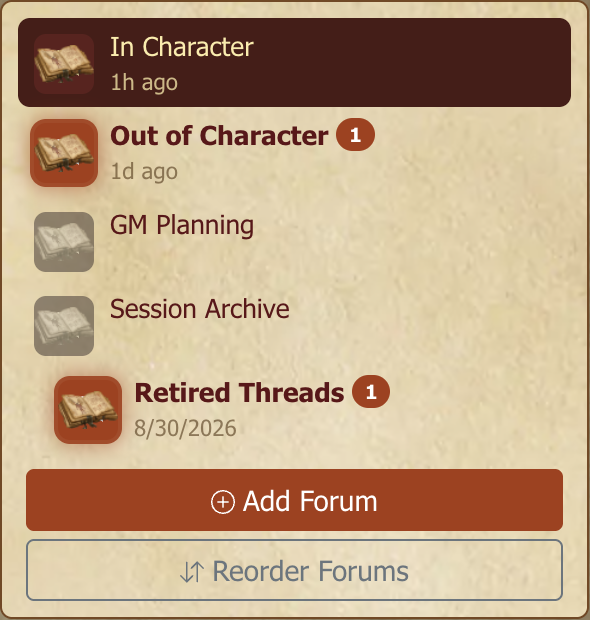
Choosing Forums takes you straight into the game's default forum rather than to a list — the list lives alongside it. Every forum page carries a forum sidebar down the left, showing every forum in the game in whatever order the GM arranged, with sub-forums nested under their parents. For each one you see:
- Its name
- An unread badge with a count, when there's new content waiting for you
- When it was last active
The forum you're currently reading is highlighted, so the sidebar doubles as a place-marker while you move around. GMs also get Add Forum and Reorder Forums buttons beneath the list.
There's a second route that works from anywhere in the game, including pages with no sidebar: the Forums entry in the game's tab bar has a small arrow beside it. Open that and you get the same list as a dropdown — every forum, each with its own unread count — so you can jump straight to any of them without going through the one you're in. Games with a single forum skip the dropdown and name the tab after that forum instead.
The forum's own description sits just under its header, next to the controls for following it, marking it all read, and starting a new topic.
Below that are the forum's topics: title, creator, reply count, and last post — plus a count of how many new posts have landed since you last looked. A topic's title shows in bold while it has unread posts and switches to normal font once you've read it. Next to each title is a small journals icon. You can click it to preview the topic's first and last post in a popover (switch between the two with the tabs), without opening the topic. Each preview's timestamp is a link: click it to jump straight to that post, which is particularly handy for landing on the first or last post without paging through a long topic.
Community forums at the site level work the same way, just at a different URL. See Community, Messages, and Social for site-wide navigation.
Tags
Topics can carry short tags, such as bug report, recruiting, or on hiatus. They're shown as chips under the topic title and in the forum's topic list. It's a quick way to label a thread or signal status. Click a tag to see other topics carrying it (only ones you have access to). Up to five tags per topic.
You can edit a topic's tags if you're its author, a GM of the game, or community staff: open the topic and use the + button next to the tags to add or remove them. Start typing to reuse an existing tag (autocomplete) or just type a new one — no approval needed.
Catching up: Mark All Read
If you've been away — a long weekend, a busy week, a bad case of "I'll get to it tomorrow" that lasted six tomorrows — the Mark All Read button on a game's Forums tab clears every unread flag in one shot. Use sparingly; it's hard to undo.
To clear just one forum, click its lit-up unread icon in the forum list — in a game's forum sidebar, or on the community home page. That marks every topic in that forum read in a single click, without opening it. Handy for a forum you follow along with but never need to catch up on.
Inside a single forum there's a Mark All Read button too. It only appears while that forum has something unread — when there's nothing to catch up on, there's nothing to mark.
Downloading a thread
The download button (the ⬇ icon) in a topic's header saves the whole thread, every page, as a plain-text file. It's exactly what you can see: posts and dice rolls hidden from you (whispers you're not on, GM-only or blind rolls, and private blocks) are left out, and deleted posts are skipped. The text keeps its structure, such as paragraphs, line breaks, quoted passages (shown as > lines with who said them), and lists. It also labels any private, OOC, or spoiler asides so you can tell them apart. Handy for archiving, searching offline, or feeding a thread into something else.
Getting back to the top
Long threads can mean a lot of scrolling. On Android phones and tablets, a small back-to-top button (an upward arrow) appears in the bottom-left corner once you're well down the page; tap it to jump back up. On a desktop, press the Home key; on an iPhone or iPad, tap the status bar at the top of the screen. If you'd rather have the button everywhere, turn on Always show a back-to-top button in Account Settings > Accessibility. At the bottom of a thread the floating button gives way to a Back to top button in the row with the page numbers.
Following: subscribing to specific corners
You can Follow an individual topic, a forum, or a whole game. Followed items show up in your Dashboard's "Followed Topics" widget and pipe notifications through to you based on your settings. Look for the Follow button on any topic, forum, or game page.
Follow quietly. When you're following something, the Follow dropdown shows a Notify me of new posts switch. Turn it off to keep the item in your follow list — a "save for later" bookmark — without any notifications. The button shows a slashed bell and (silent) so you can tell at a glance. Flip the switch back on any time. See Calendar and Notifications for the full picture.
Starting a topic
Inside a forum, click New Topic to start one. You'll set:
- Title — what the thread is about.
- Post content — your opening post. (See The Post Editor for everything you can put in one.)
- Post type — Normal, IC, or OOC, if the forum supports those distinctions.
[GM]
GMs get extra options when creating topics: pin-on-create, lock-on-create, set a default post type, mark it GM-only or restrict to specific roles. The Game Master's Guide walks through those.
Posting
Quick Reply vs. Full Editor
At the bottom of every topic there's a Quick Reply box — type, click Post, done. Uses your default editor mode. Great for fast back-and-forth. It's open by default; prefer it collapsed until you need it? Turn off "open automatically" in Account Settings > Editor and it'll start collapsed, expanding when you click its header (or quote a post).
If you need more — the full toolbar, post-type controls, character selection, attachments — hit the expand button on Quick Reply (or use the dedicated New Post page). The Full Editor opens with all the controls visible.
The full breakdown of editor features lives in The Post Editor.
Post types: IC, OOC, Normal
In game forums, posts can be tagged:
- In-Character (IC) — your character speaks. Rendered with the postbit and styling your character template provides. The fictional layer.
- Out-of-Character (OOC) — you, the player, speaking. Rules questions, scheduling, meta-talk. Visually distinct so nobody confuses "I'm rolling to attack" with "my character is rolling to attack."
- Normal — no special tag. Used in community forums and any time the IC/OOC distinction doesn't apply.
You can also drop a brief OOC block inside an IC post for a quick aside ("OOC: did you mean the goblin on the left or the right?") without breaking the IC frame for the whole post.
Posting as a character
If you have a character linked to the game (see Characters, Resources, and Maps for the how), the editor's Character Selector dropdown lets you pick who's speaking. Your post then displays with that character's name, avatar, and postbit instead of your username.
This is what makes the IC layer feel like a game and not a forum.
The postbit is captured when you post, so changing your portrait or template later affects new posts and leaves old ones as they were — see Changing the portrait later.
Peeking at a character's sheet
Click a character's name above their post to open their character sheet right there, without leaving the topic. It opens read-only, organised into sections — Identity, abilities, skills, equipment and so on — with the portrait at the top.
Two things worth knowing:
- Ctrl-click (or Cmd-click on a Mac, or middle-click) opens the full sheet in a new tab instead, exactly as the name always did.
- The pop-up header has an Open the sheet ↗ link if you want the full sheet after all.
You'll only see what the sheet's owner has made visible to you; a private sheet stays private.
Mentions
Type @ followed by a username and a dropdown of matching members appears. Pick one, and that person gets pinged the moment your post lands, whether they're online or offline.
A handful of group mentions work too:
@gm— every GM and assistant GM in the game@players— every player in the game (excludes readers and applicants)@here— everyone who's looked at this topic recently@everyone— every member of the topic. Use this one sparingly, it can be overwhelming.
Each recipient's notification settings decide how they get pinged (in-app, push, email). Group mentions don't get past mutes: someone who's muted the topic still won't get the email, no matter how you tried to summon them.
Mentions outside of a game (in community forums, blogs, and DMs) work the same way for individual users. Group mentions, though, are game-scoped, so they simply won't resolve out there.
Quoting
Hit Quote on any post and its content flows right into your reply, already formatted with the author, a link back to the original, and the full text. From there it's just normal editor content, yours to shape however the moment calls for: trim it down to the single line you're really responding to, keep the whole thing, whatever serves your reply best.
Quick Reply quotes stay tight and simple: a single quote, no nesting, dropped neatly at the bottom of your draft. Perfect for fast back-and-forth. Full Editor quotes give you nested quoting for when you're weaving together a longer thread of replies, along with the full toolbar for anything else the post needs.
Light rules of the road:
- Try not to quote a whole post just to add a "+1." Your fellow players will skim right past it, and you'll end up burying whatever you actually wanted to say.
- Quoting an OOC block carries the OOC flag, so the meta-tone survives.
- Quoting a whisper or private block always respects the original audience. If you couldn't see it, you can't quote it, and if you could, the quoted excerpt stays visible only to that same audience.
Reacting to posts
In games where the GM has turned reactions on, the post's action row carries a reaction control using the classic Myth-Weavers orc emoji. Click the smiley add-reaction button and pick one; orcsmile (approve), orcno (disapprove), orctwitch (surprise), orctongue (playful), orcsad, or orcdance (celebrate). Your pick appears as a highlighted chip with a running count.
A few details:
- You can add several different reactions to the same post. Click a chip again to remove your reaction.
- Anyone who can read the post can react, you just need to be signed in.
- To see who reacted, open the reaction popover (the add-reaction button on desktop, or tap the stacked reactions on mobile): each emoji lists the people who used it.
- When someone reacts to your post, you get a notification (shown with the actual orc emoji). These are in-app by default; you can turn them off under Account Settings → Notifications.
Reactions are a per-game feature and are off by default. You'll only see them in games whose GM has enabled them. They also aren't available in the community forums.
[GM]
Reactions are opt-in per game. In Edit Game Settings → Game Features, turn on Allow post reactions to let your players react to posts; turn it back off to hide the reaction bar and stop new reactions (existing reactions are retained but not shown).
Polls
Any post can carry a poll. Open the Poll tab above the editor, in Quick Reply, when starting a topic, or when editing your post:
- A question and 2 to 10 options
- An optional Close on date, after which no more votes are taken
- Allow multiple choices, Show results while open, and Show voter names
The tab shows Poll ready once the question and at least two options are filled in; only then is the poll posted with your post.
The poll's own header has Close, which ends voting early, and Delete. To change the question or options, edit the post.
[GM]
In your game you can close, delete or edit any poll, including one a player made. Close and Delete appear on every poll for you, and editing the player's post opens its poll.
Reusing a poll
On a post that has a poll, open or closed, the Clone button has a dropdown arrow with Clone poll. That copies the poll's question, options and settings, but not its votes or its close date. Then open the Poll tab in any editor, in this game or another, and choose Use cloned poll to fill in the form. Change whatever you like before posting. The cloned poll stays on offer until you choose Dismiss, so you can reuse it more than once.
An open poll also appears in a box at the top of its topic, and that box has its own Clone button, so you don't have to find the post the poll is in. It does the same as Clone poll.
Ongoing effects
When a spell or condition outlasts the post that caused it (a Bless on the party, a Shaken fighter, a curse), tag it on the characters it affects so nobody forgets it between posts.
- Apply an effect: on any post by a character in a game, choose + Effect under the character's postbit (on a phone, it sits above the post). Give it a name, an optional note (
+1d4 to attack rolls and saves) and an optional Until (end of the fight). That post's character is already ticked; tick any other characters it affects too. GMs and players can apply effects.
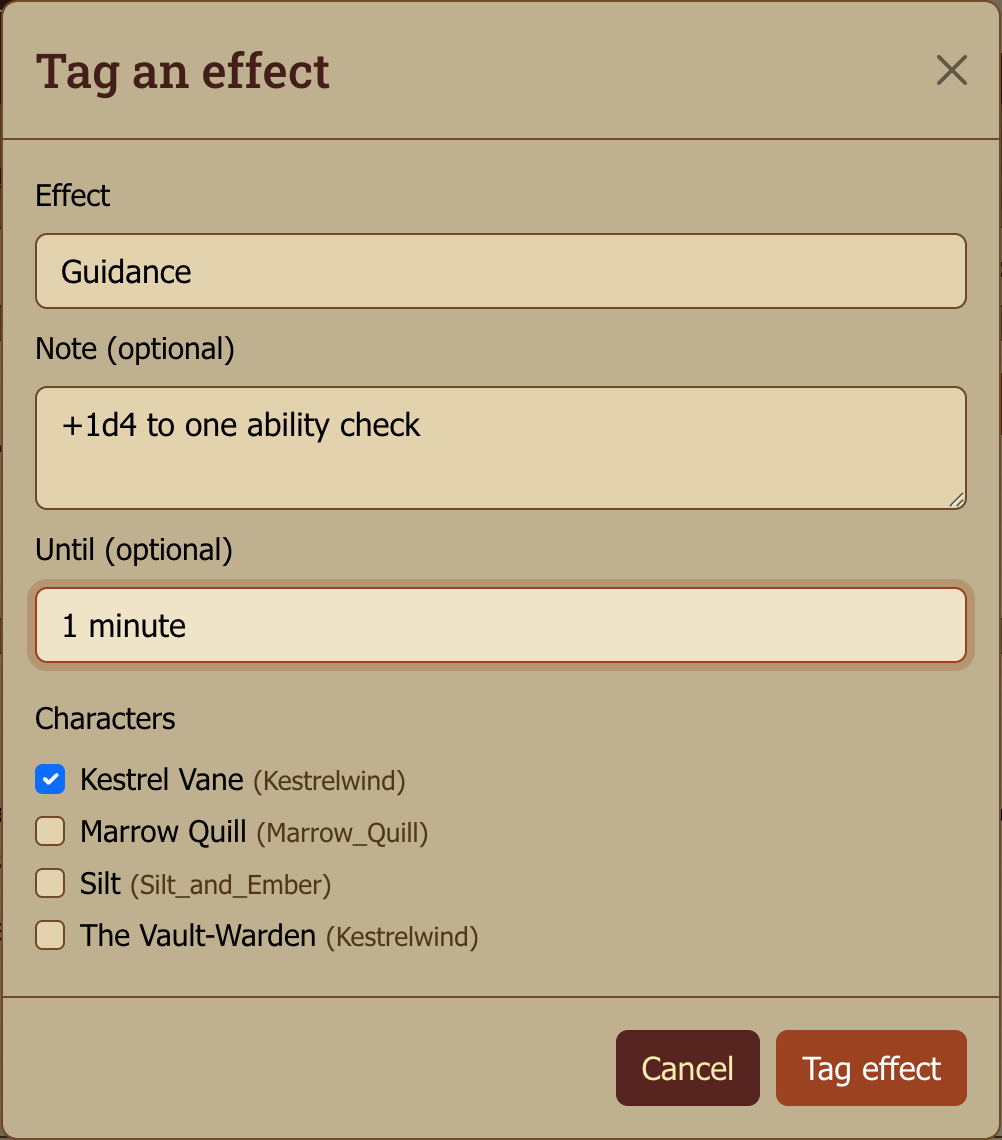
- It's part of the scene: applying an effect adds an entry to the topic's timeline, like a dice roll: "Marrow_Quill applied Bless to Kestrel Vane, Marrow Quill, Silt".

- On the postbit: each affected character's posts show the effect as a chip for as long as it lasts. Click a chip to see its note, how long it lasts, and who applied it.
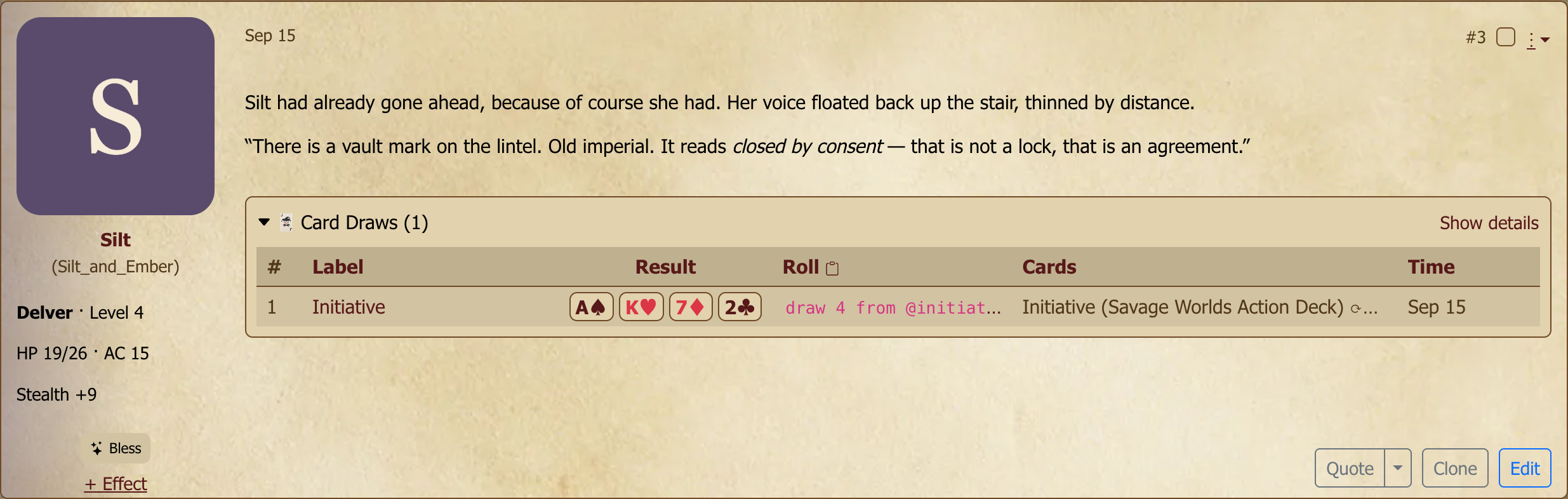
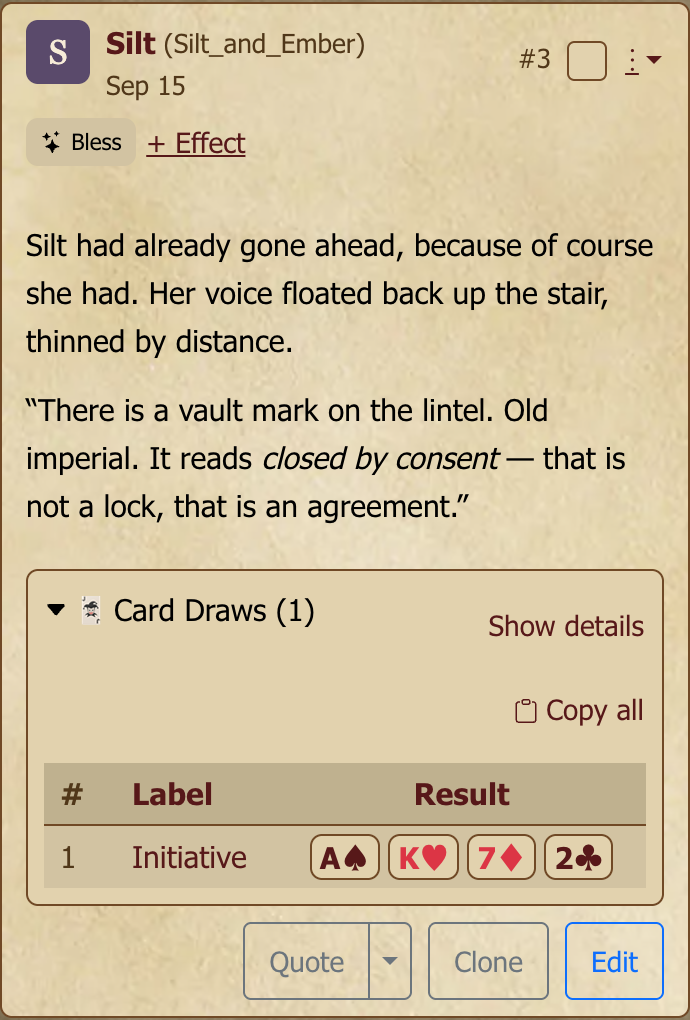
- The reminder: when you write a post as an affected character, its active effects appear on your postbit in the reply box.
- Clear it: when it wears off, choose Clear on its timeline entry or on a chip. Whoever applied it, the player of an affected character, or a GM can clear an effect. Clearing adds a "cleared" entry to the timeline, and posts after that no longer show the chip. Posts written while it was active keep it, so the thread stays a true record of the scene. A post's chips reflect the effects active when it was written; editing the post later doesn't change them.
Effects only attach to characters, so post as a character to use them. An effect lasts across every topic in the game, but its timeline entries appear in the topic where it was applied or cleared. An effect applied in a thread some players can't read, such as a GM-only topic, is visible only to people who can read that thread and to the affected characters' players.
Dropping live sheet values into a post
If you've linked a character sheet to the game, the editor's Sheet field button (📋) opens a picker that lets you drop live values from the sheet straight into your post. The button appears once you're posting as a character — if you don't see it, pick your character on the composer's Character tab first, then return to the Editor tab. This includes current HP, AC, spell slots, or the dagger you remembered to pick up two sessions ago. Browse or search; each row shows the current value so you know what you're inserting.
When you submit, every chip bakes in its value at that moment. Later edits to the sheet won't reach back and rewrite your old narration, so your retelling of that bloody fight in the goblin warren stays true to the HP total you actually had at the time. If you want to pull fresh numbers mid-edit, the Refresh button walks the whole post and updates every chip in a single pass.
You can also set a value from right inside the picker. Type your new HP after taking a hit, press Enter, and the chip uses the updated number. The sheet write itself happens just once, on submit, so if you bail on the post the sheet stays exactly as it was.
[GM]
As a GM or assistant GM, you can edit any linked sheet's fields from the picker, not only your own characters'. It's the same interface throughout, and it always respects whatever sheet-edit permissions you actually hold. This is wonderful for the "the magic item attaches to the rogue mid-narration" moment: open the picker, set the new slot, insert the chip, and post.
The Post Editor guide covers the picker's mechanics in detail. This includes keyboard shortcuts, field search, and value-set syntax.
Hiding things (whispers, private blocks, spoilers)
Myth-Weavers gives you four ways to hide content in a post for your players. Pick the one that matches what you need, whether it's an allow-list or block-list:
| Tool | Scope | Audience model | Use when |
|---|---|---|---|
| Whisper | The whole post | Allow-list (you pick who CAN see it) | Passing a secret note to the GM, or a side conversation between two characters |
| Private block | An inline region | Allow-list | Mixing public IC dialogue with a thought only the cleric overhears |
| Private-From block | An inline region | Block-list (you pick who CAN'T see it) | Public action that one specific character shouldn't know about — easier than enumerating everyone else |
| Spoiler | An inline region | Open (anyone can click to reveal) | Long stat blocks, optional lore, content warnings |
Whispers hide the content but not the fact it happened. Other readers see "there's a whisper here" and know the conversation is happening. Private and Private-From blocks are invisible: non-recipients see no trace.
Language tags are a fifth variant with a different model. The audience is whoever speaks the language in question (a per-character setting), and non-speakers see obscured text indicating "someone's talking, but it's not in a tongue you know."
GMs always see everything, regardless of which tool you used. It's not possible to keep secrets from the GM within the game. Mechanically, all of these are buttons in the editor toolbar — see The Post Editor for the click-by-click.
Fieldsets — labeled, bordered boxes
A Fieldset is a labeled, bordered section you can drop into a post — visually setting apart a stat block, a letter prop, a journal entry, a paragraph of in-world flavor text. Not a visibility tool; just a layout one. Stack them with whispers or private blocks if the contents should also be restricted.
Rolling dice
For dice rolls — notation, visibility (everyone / GM-only / blind), the pending-and-claim flow — see Dice Rolling. The short version: roll in the topic's dice panel, the result waits in your Pending pile, and you attach it to your post when you submit. Nobody rolls after seeing the result.
Editing & revision history
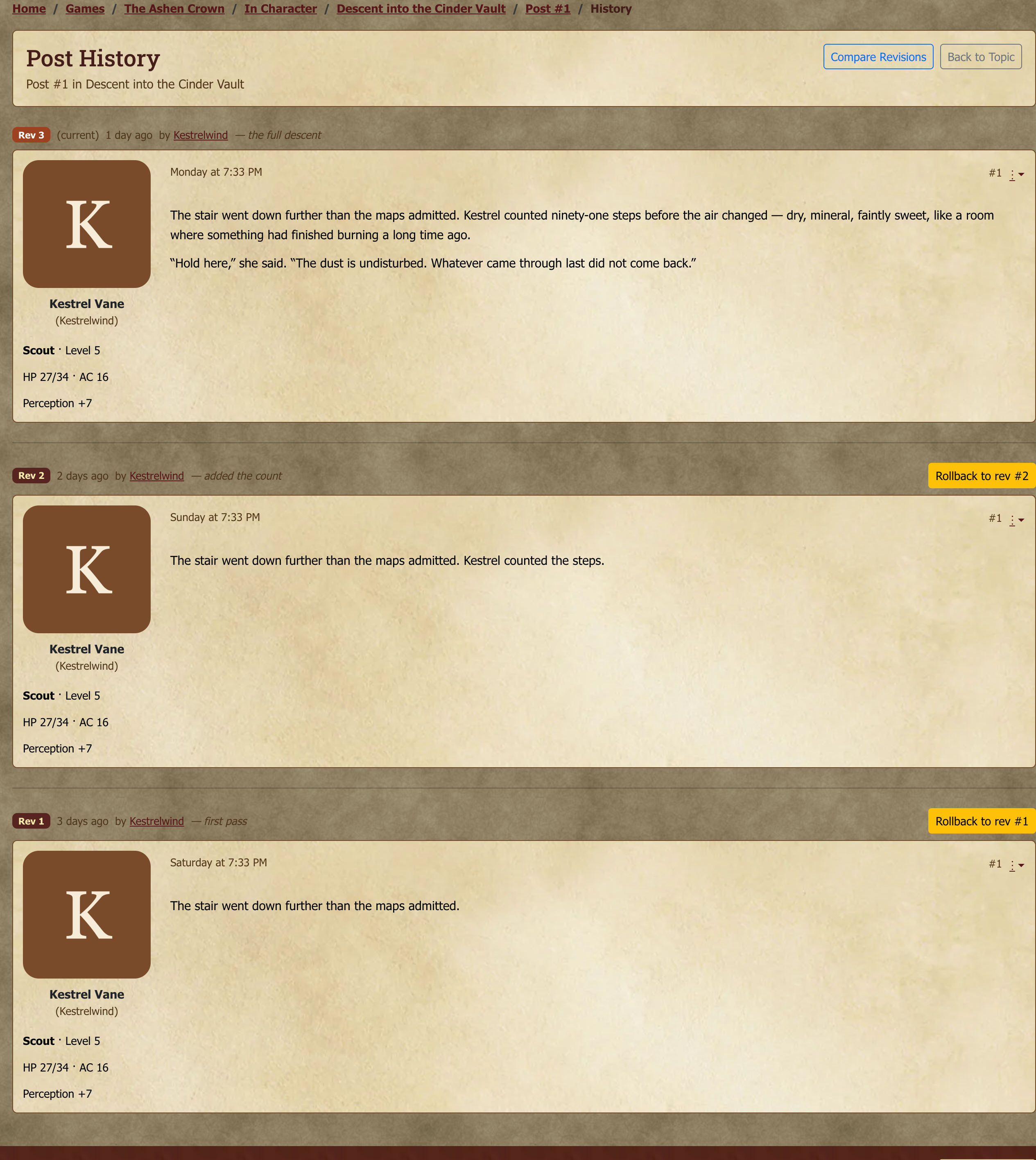
You can edit your own posts after they're submitted, there's an edit button on each. Every edit is saved as a revision, so the post's full history is preserved.
When you edit, you can add an optional reason for edit ("fixed a typo", "updated for the new ruling"). The most recent reason, along with who edited and when, shows on the post itself, just below the content (e.g. Edited 2 hours ago by Aranel: fixed the spell DC). Leaving it blank just records the edit without a note.
Click History on any post to see all previous versions, who edited each one, when, and the reason given for each. You can compare any two revisions side by side; useful when "wait, did the GM change the loot list, or am I misremembering?"
GMs see everyone's edit history within their games. Community moderators see edit history across the community forums they moderate.
Posting deadlines
Posting Deadlines are the GM's gentle nudge to keep the game moving — a per-topic deadline by which everyone who hasn't posted yet should post. The countdown shows on the topic; when the clock runs out, players who didn't post show up in the GM's overdue list.
As a player
A topic with an active deadline shows a deadline widget at the top:
- The deadline's date and time, and how long is left (
in 2 days), or a Past Due badge once it has passed - A Posted badge if you've posted since the deadline was set; otherwise a reminder of the time remaining
- A progress bar of how many tracked players have posted (
3 / 6 posted) - Waiting on: the players who haven't posted yet, and Posted: the ones who have — so everyone can see who the scene is waiting for. After the deadline passes, the first line reads Did not post:
In the forum's topic list, a topic with an active deadline shows a clock badge with the same count (3/6), so you can see where each scene stands without opening it.
You'll get notifications when:
- A deadline is set on a topic you're in (configurable)
- You're approaching a deadline you haven't met (default ~24 hours out, tunable)
- A deadline has passed without your post
Mute deadline notifications for a single topic from the topic header; tune them globally in Calendar and Notifications.
[GM]
Setting and managing deadlines (GM)
Open the topic's actions menu and choose Posting Deadline — available to GMs and assistant GMs. Once a deadline is set, the gear button on the deadline widget opens the same panel.
- Create Deadline — give it a title, an optional description and a target date/time, and choose under Track posting for whether to track All active players or Only specific players. The tracked players are fixed when the deadline is created. The widget appears immediately and notifications fan out.
- Status tab — the posted/total progress, each player who has Posted (with when), and each one still Pending (Missed once the deadline has passed), with when each was last reminded, if they have been.
- Edit tab — change the deadline, or Cancel Deadline to remove it; the widget disappears.
Every deadline in your game at once: every forum page in your game opens with a Posting deadlines card when the game has any active deadlines. It lists each one with its topic, the posted count (1/4 posted), how long is left (or Past Due), and who it is still waiting on. Only GMs and assistant GMs see the card.
One active deadline per topic; setting a new one replaces the old.
Good uses: keeping a steady IC pace after each round of posts; signaling "you have until Friday" before a planned absence; a "submit your character by X" deadline on the planning topic.
Bad uses: OOC chat (deadlines are for IC pacing, not casual conversation); as a punishment mechanic (the overdue flag is a signal for a conversation, not a sanction).
Active deadlines also show in the game's calendar as upcoming events — see Calendar and Notifications for the calendar view.
Unread tracking
Myth-Weavers remembers where you stopped reading in every topic. Open a topic with new posts and you'll land on the first one you haven't seen. The Unread Topics page (in the navigation) collects every topic across every game and followed forum with new posts waiting.
This is the page to open when you sit down for a session and want to know "what did I miss?"
Where to go next
Roll-up of the related guides:
- The Post Editor — the full editor reference (modes, toolbar, drafts, attachments, advanced formatting)
- Dice Rolling — the dice system end-to-end
- Characters, Resources, and Maps — linking sheets, character templates, the resource ecosystem
- Calendar, Events, and Notifications — tuning what gets pinged to where
- Game Master's Guide — for when you're the one behind the screen