
Community, Messages, and Social
Myth-Weavers is a community first and forum software second. A lot of the folks you'll meet here have been around for fifteen or twenty years, juggling several campaigns at once, and the non-game corners of the site are where you'll catch them between sessions. This guide is your tour of that side of things: the community forums, search, direct messages, friends, and all the social settings that tie them together.
Community forums
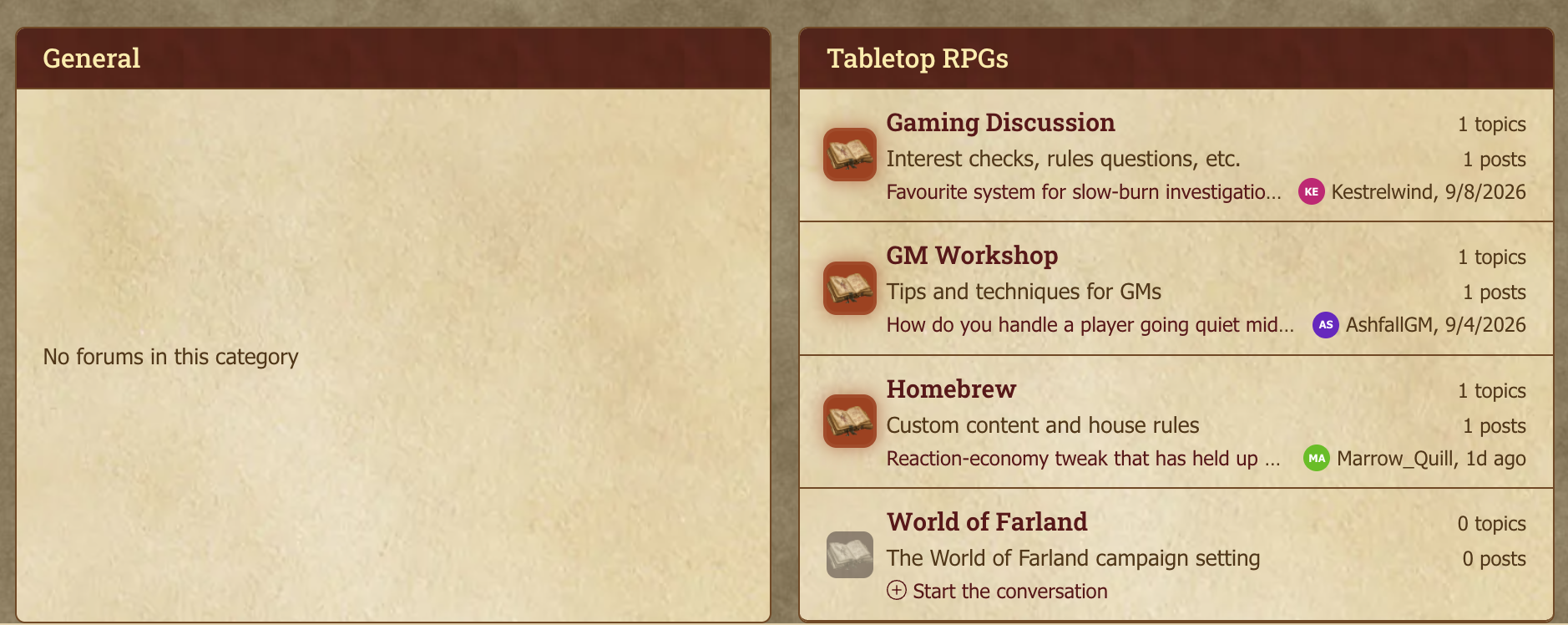
The Community Forums are site-wide gathering spaces, sorted into categories. Where a game forum belongs to one specific game, these are open to everyone with an account, so they're where the whole site comes together to talk.
You'll find them on the home page when you're signed in, below your games and the recruitment carousel. The categories span general chatter, system-specific talk (D&D, Pathfinder, GURPS, and the rest), recruitment, site feedback, off-topic wandering, and plenty more.
The community forums behave exactly like game forums: start topics, post replies, follow a forum for notifications, keep tabs on what's unread. If you'd like the complete walkthrough, Forums, Topics, and Posting has you covered.
Search
Myth-Weavers has full-text search across the entire site, accessible from the search bar in the navigation.
Search filters
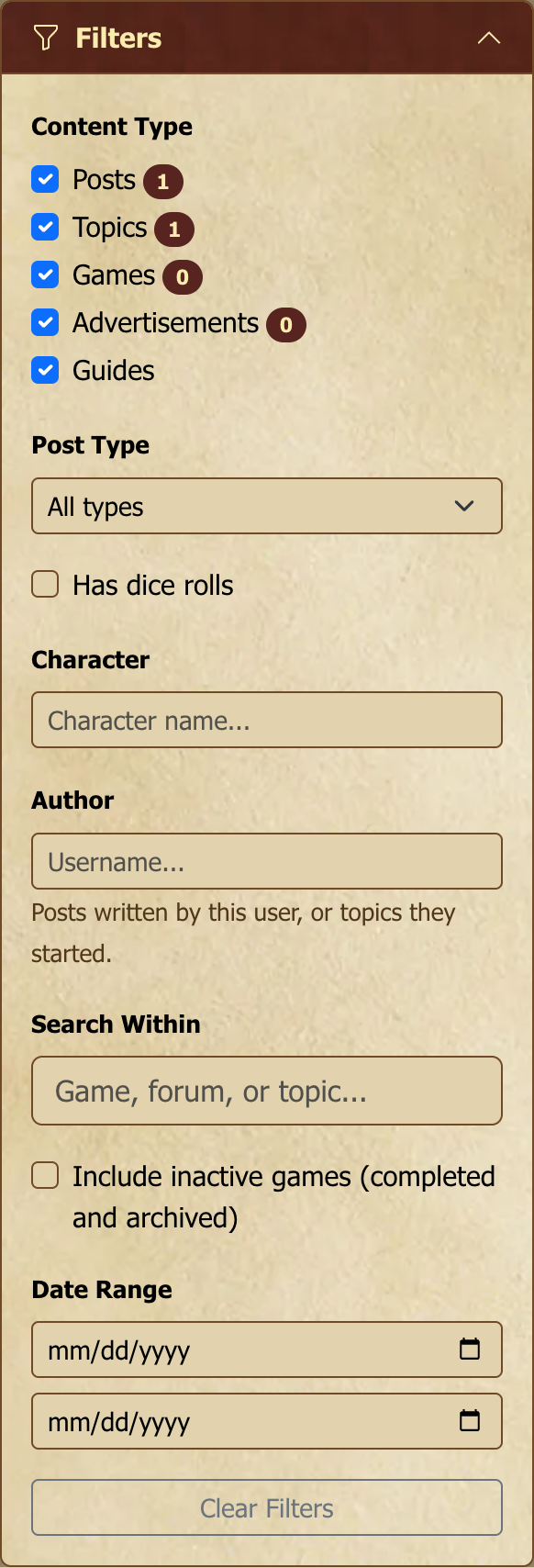
When a search turns up more than you bargained for, the filter sidebar helps you narrow things down:
- Content Type — posts, topics, games, advertisements, guides, and issues. Toggle each; counts per type show in the header. Issues starts unticked — tick it to include bug reports and feature requests from the issue tracker alongside everything else.
- Post Type — In-Character, Out-of-Character, or Normal.
- Has Dice Rolls — only posts that contain dice rolls (useful for "find that one combat").
- Author — posts written by a specific username, or, with Topics selected, threads that user started. Combining this with an empty-ish query is the way to answer "find all the threads I started"; adding search terms then narrows within them.
- Character — posts made as a specific character.
- Search Within — scope the search to a specific game, forum, or topic. Start typing the name and pick from matches.
- Include inactive games — pull in content from games that have finished, both Completed and Archived ones. Off by default to keep results recent, which is worth knowing if you're searching for something old and getting nothing: tick this before concluding it isn't there.
- Date Range — from/to date pickers.
Each result shows the content type, a highlighted snippet of the matching text, the location (game › forum), the author, and how long ago it was posted. Click any result to jump straight to it.
⚠️ Searching a username as a search term is not the same as filtering by Author. A term matches the text — so typing your own username with Topics selected finds threads whose title mentions you, including ones other people started about your character. To get threads you started, put the name in the Author filter instead.
When a search is too broad
Very common words are the one thing site-wide search struggles with. A term like "language" or "attack" appears in hundreds of thousands of posts, and gathering all of them takes longer than a page is willing to wait.
When that happens you'll see a "Some results couldn't be loaded" notice above the results, naming the section that gave up — usually Posts. The other sections on the page are unaffected and their results are complete.
That notice means the search was cut short, not that nothing matched. Don't read it as "there's nothing there." To get a real answer, either use a more specific term, or keep the term and narrow the hunting ground with Search Within on a single game or forum — scoping is usually the faster fix, and it's what turns a search that gives up into one that returns instantly.
Under the hood: how search works
Search runs against a tsvector index over post content (PostgreSQL's full-text search). Posts are indexed at write time, so freshly posted content is searchable within seconds. Stemming is enabled (searching "rolled" matches "rolling"), and stop words ("the," "a," etc.) are ignored. Boolean operators aren't currently exposed in the UI — keyword soup works fine for most cases.
The post index covers 17 million posts. A search has to read every matching post before it can rank them, so cost scales with how common your term is, not with how many results you get back. Post searches are capped at six seconds; past that the Posts section reports itself as incomplete rather than holding the page open. Scoping with Search Within applies the game or forum filter first, which is why it helps so much more than adding another keyword.
Tags
Tags are short descriptive labels you can pin to topics, issues, and blog entries, and they're how you make content easy to find again down the road. A system-d&d-5e tag on a recruitment post, a rules-question tag on an OOC topic, a bug tag on an issue: each one means you can find it easier later.
Applying tags
The tag picker on a topic/issue/blog form is an autocomplete:
- Start typing; matching existing tags surface, with usage counts so you can prefer popular ones.
- Press Enter, Tab, or comma to commit each tag.
- Up to 10 tags per item.
Tags are optional. Most items don't need any; a couple of well-chosen tags is more useful than a flurry.
Browsing by tag
Tags display as clickable badges on the item itself. Clicking a tag runs a search for that tag and surfaces every other item carrying it. There's no separate "tag directory" yet — search is the way in.
Tag style
A few light norms:
- Lowercase, dash-separated —
home-brew-rulesreads better thanHomeBrewRulesorhome_brew_rules. - Prefer existing tags. The autocomplete is sorted by usage; reusing a known tag means your content shows up alongside related items.
- Avoid one-off tags. A tag that only ever applies to one item adds clutter without helping discovery.
Issue tracker
Bug reports, feature requests, support questions, voting on what gets built next — all in one place. See Issue Tracker for the full reference.
Community announcements
Site-wide announcements — maintenance windows, new features shipping, community events, the occasional important policy note — appear as dismissible banners on the home page. Admins write them; everyone sees them until they dismiss or the announcement's end-time passes.
Game-scope announcements (visible only within a specific game) work similarly but live on the game's page — see Game Master's Guide for the GM-side authoring.
Direct messages
The built-in DM system handles private conversations between users.
Starting a conversation
The Messages icon in the navigation bar opens your conversation list. New Conversation lets you pick recipients by username and start writing.
You'll also be offered a Subject — optional, but it decides how the message is filed. Give one and you start a brand-new conversation, even if you already have a thread going with that person; the subject becomes its name in your conversation list. Leave it blank and your message continues the conversation you already have with them, if there is one. So you can keep several separate threads with the same person — one per topic — the same way you could on the old site.
The Send Message shortcut on a profile or hover card doesn't ask for a subject, so it always continues your existing conversation with that person rather than starting another one.
Group messages
Add multiple participants to a single conversation for group chat. All participants see the full message history; adding someone later means they can scroll back to read the prior conversation (no hidden history).
Editing, deleting, and linking a message
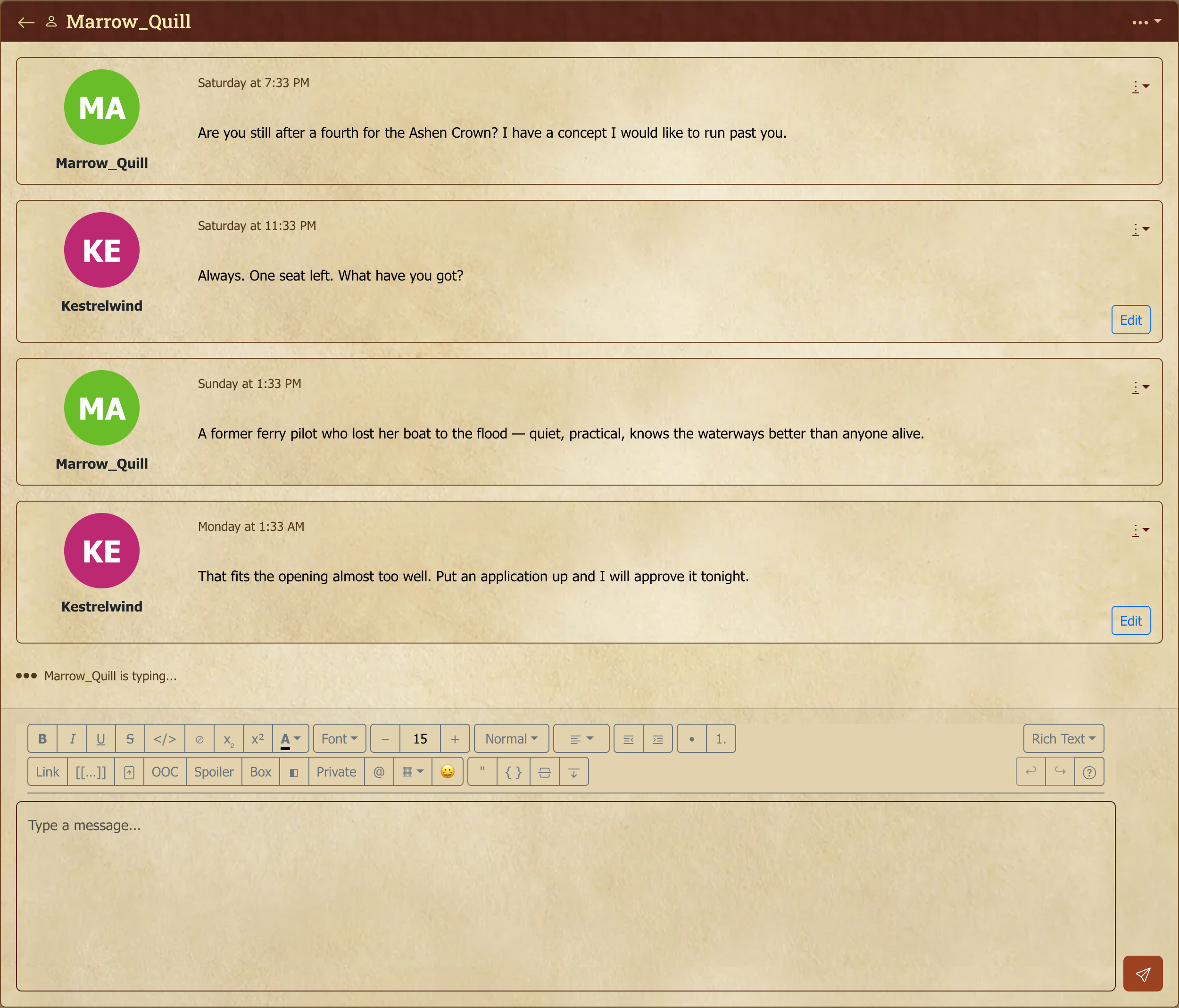
Conversations read like a forum topic, with each message as its own card. On your own messages you'll find Edit and Delete: editing updates the message in place (and shows an "edited" note), and both changes appear live for everyone in the conversation. Every message also has a Copy link to post action; pasting that link takes you (or whoever you send it to, if they're a participant) straight to that exact message, scrolled into view and briefly highlighted.
Getting back to the top of a conversation
A conversation opens at its newest message, so the controls at the top of the page can be a long way up. The same back-to-top button that threads have appears here too: automatically on Android and other touch devices, and on any device once you turn on Always show a back-to-top button in Account Settings > Accessibility. Since a conversation opens at the bottom, you'll find a Back to top button just above the message box. At the top you'll also find Load earlier messages if the conversation goes back further.
Typing indicators
When someone in your conversation is typing a reply, a typing indicator surfaces it so you know a response is coming.
New-message alerts
You don't have to keep scrolling up to check for replies. When a new message arrives while you're elsewhere on the site, three things happen:
- A brief "New message from …" pop appears, naming the sender. It stays up for a few seconds and has a View message link that jumps you straight to the first unread message in that conversation.
- The browser tab title gains a count badge (e.g.
(2) Myth-Weavers), so unread messages are visible even when the tab is in the background. - The notification bell gains an entry for the conversation, showing its name and how many unread messages it holds.
The tab badge and bell both count unread conversations (one per conversation, however many messages it contains) and clear once you're caught up.
Read receipts
Messages show when each recipient has read them. Useful for the "did they see this yet?" check.
Opening a conversation clears its bell entry immediately. Clicking the bell entry (or the toast's View message link) drops you at the first message you haven't read yet. Note that "Mark all read" on the bell leaves message entries alone; they clear only when you actually open the conversation.
Reporting an abusive DM
If someone is harassing you, the conversation has a Report action that flags the thread for moderator review. Reports go to the community moderation queue; you can also block the user from your Account Settings → Social → Privacy page.
Away messages
Going on holiday, getting married, unwell? An Away Message (in your profile menu) lets you post one notice that appears in every game you belong to, instead of posting in each game separately.
Pick the day you're away from and the day you're back, and choose which games to post it in (all of them are ticked to start with). The notice shows as a banner at the top of each game until your return date, then comes down on its own.
What each game sees depends on your role there:
- Games you run (as owner or GM) show your note, if you write one, and every member is notified.
- Games you play in show only your name and your dates ("yourname is away from Oct 4 until Oct 12"). Only that game's GMs are notified; the other players see the banner when they visit.
The page previews both versions before you post, so you can see exactly what each game will show.
Members who share several of your games get one notification that lists them, not one per game.
Back early? Use I'm back on the Away Message page. The banners come down everywhere at once. Edit changes the dates or the note in every game together. To change which games it's in, end it and post a new one.
You can only have one away message at a time, and you need a verified email address to post one.
[GM]
A member's away message in your game appears in Manage Announcements marked away message. You can delete it from your game, but not edit it, because it speaks in that member's name. Only its author can change it, from their Away Message page.
Private notes
Private notes are a personal scratch space at My Notes (in your profile menu). They are yours alone: no other member can open them, no GM can see them for a game you're in, and they're excluded from search, RSS and every forum listing on the site.
They're the right home for the things play generates that don't belong in a post: what your character actually suspects, the name of the NPC you decided was important, a draft you're not ready to publish, a running list of what you owe the table.
Each note is a thread, not a single text box, so you can keep adding to one over a campaign and read it back in order.
Under the hood: notes are a forum only you can see
A note thread is a real topic in a Private Notes forum created for your account the first time you open the page. That's why notes behave like posts rather than like a notes app: you get the full post editor with formatting, images, tables and dice, plus revision history on every edit.
It also means the usual forum affordances work — you can quote yourself, link between notes, and search them.
Private, but not a vault. The access check is owner-only, so notes don't appear to other users through any normal route — but they're stored like any other content on the site, not encrypted. Passwords and genuinely sensitive personal information belong in a password manager, not here.
And notes are not a backup. They live in the same database as everything else, and deleting your account deletes them. Anything you'd be upset to lose belongs somewhere you control.
Bookmarks
Bookmarks keep a list of posts you want to find again. Only you can see your bookmarks.
To bookmark a post, open the post's menu (⋮, top right of the post) and choose Bookmark post. Choose Remove bookmark from the same menu to take it off your list.
Open Bookmarks from your username menu to see them, newest first. Each entry shows the thread, the game and forum it's in, who wrote the post, and the start of the post. Go to post opens the thread at that post, and Remove takes it off your list.
Removing a bookmark always asks you to confirm first, because a bookmark may be your only easy way back to a post.
A bookmark never lets you see more than you could already read. If a post is deleted, or you can no longer read it (for example, you left the game or a GM restricted the forum), it drops out of the list. The page tells you how many bookmarks are no longer available, and Remove them clears those from your list.
You can't bookmark a whisper, a GM-only post, a direct message or a private note. You can keep up to 5,000 bookmarks.
Friends
Build your network on Myth-Weavers by adding other users as friends.
Sending friend requests
Every user's profile has an Add Friend button. Click it, and they'll get a notification they can accept or decline at their leisure.
There's a limit on how many requests a brand-new account can send: if you've just joined and haven't posted anything yet, you can send 5 friend requests per 24 hours. Once you've posted, or once your account is a month old, the limit rises well beyond anything ordinary use will reach. It exists to slow down accounts that sign up purely to message strangers. If you hit it, it clears on its own — and posting anything lifts it immediately.
Managing friends
Account Settings → Social has four tabs:
- Friends — your friends list.
- Requests — pending friend requests (accept or decline).
- Privacy — your online status, who can message you, and who can see your friends list.
- Discord — link your Discord account.
Privacy settings
The Privacy tab has three settings:
- Who can see you online — everyone, friends only, or appear offline to everyone. Moderators can still see your status.
- Who can send you direct messages — anyone, friends only, or moderators only.
- Who can see your friends list — everyone, only your friends, or only you. It starts as only you. Whoever you allow sees a Friends tab on your profile listing your friends. Someone you've blocked can't see it whatever you choose, and site staff can always see it.
To unblock someone you've blocked, visit their profile and use the button there; there's no central list of blocked users.
Blocking someone
Blocking a user cuts off contact from them to you. Once you block someone, their direct messages, friend requests, game invitations, and mentions/quotes/replies stop reaching you. This means no notifications, no bell entries, nothing in your inbox or requests list. Blocking is quiet by design: the person you block isn't told, and from their side their messages and requests appear to send normally. Existing conversation history stays where it is; only new contact is suppressed. Unblocking restores future contact, but anything they sent while blocked remains hidden.
Games you run are the exception. If you own, GM or assistant-GM a game, someone you've blocked can't apply to it or join it. Recruiting is an open invitation, so there's no way to turn one person away without them noticing: they're told plainly, "You cannot join this game." The message doesn't say who blocked them, though in a game with one GM they may work it out. This covers the game's whole GM team: a block by any owner, GM or assistant GM counts. Blocking doesn't remove someone who's already in your game.
Blocking doesn't hide someone's posts. You'll still see what they write in forums and in games you share; it's their contact with you that stops.
Site staff can't be blocked, and staff can't block anyone. Moderators and administrators have to see what members post in order to moderate it, and members have to be able to hear from staff. The Block option doesn't appear on a staff member's profile, and staff don't have it at all. If a staff member's conduct concerns you, raise it with another member of staff.
User profiles
Click any username to view their profile. At the top is a header card with their avatar, when they joined and were last seen (subject to their privacy settings), any earlier usernames, their supporter badge if they show it, and their About Me. A long About Me is cut to a few lines with Show more. On someone else's profile the header also has buttons to send a DM, add them as a friend or report the profile.
Below the header, tabs hold everything they've done on the site. Each tab has its own address, so you can link straight to one:
- Games — the games they're in, opening on Current, with Past and All one click away. See Finding games you've played before.
- Posts — their posts, newest first, with a filter for in-character and out-of-character posts. The topic name opens the thread at the start; Go to post under the date jumps straight to that post.
- Topics — the topics they started, newest first, with each one's post count and latest activity.
- Resources — the wiki pages, blogs, maps and downloads they own, with the same type, system and search filters as the Resources directory, as cards or a list.
- In Common — games and community topics you've both been in. Only on other people's profiles.
- Friends — their friends, if they've chosen to show their list to you (see Privacy settings). On your own profile it's always there for you, with a link to change who else can see it.
- Discipline — any discipline on record. Only you can see yours, along with site staff.
Every tab shows only what you are allowed to see: a post or topic in a private game you're not in, or a resource you can't open, never appears and isn't counted either. Each tab shows its count; on a very active member's profile the Posts and Topics counts can take a moment to appear.
On a desktop browser, hovering over a username (for example, a post author) pops up a quick bio card which includes their avatar, role, join date and last-seen time. It also includes shortcuts to message them or find their posts, so you don't have to open the full profile.
Who's Online
The Who's Online panel on the home page shows who's active on the site right now. If your privacy settings have online status visible, you appear here when you're around; if not, you're invisible to the panel.
This covers the whole site, not just the forums — someone working on a character sheet counts as online the same as someone reading a thread. Your privacy setting governs all of it: set your online status to hidden and you're absent from the panel wherever you are on the site.
A related Who's Viewing indicator appears on individual topics and games, showing other users currently looking at the same content. The same privacy controls apply throughout.
Next steps
Stay on top of events and updates with Calendar, Events, and Notifications.