
Game Master's Guide
Running a game on Myth-Weavers covers a lot of surface: creation, settings, forums, members, recruitment, visibility, calendars, integrations, archiving, the rest. This guide walks the full GM lifecycle. Use the table of contents to jump; not every section will matter on day one.
Creating a game
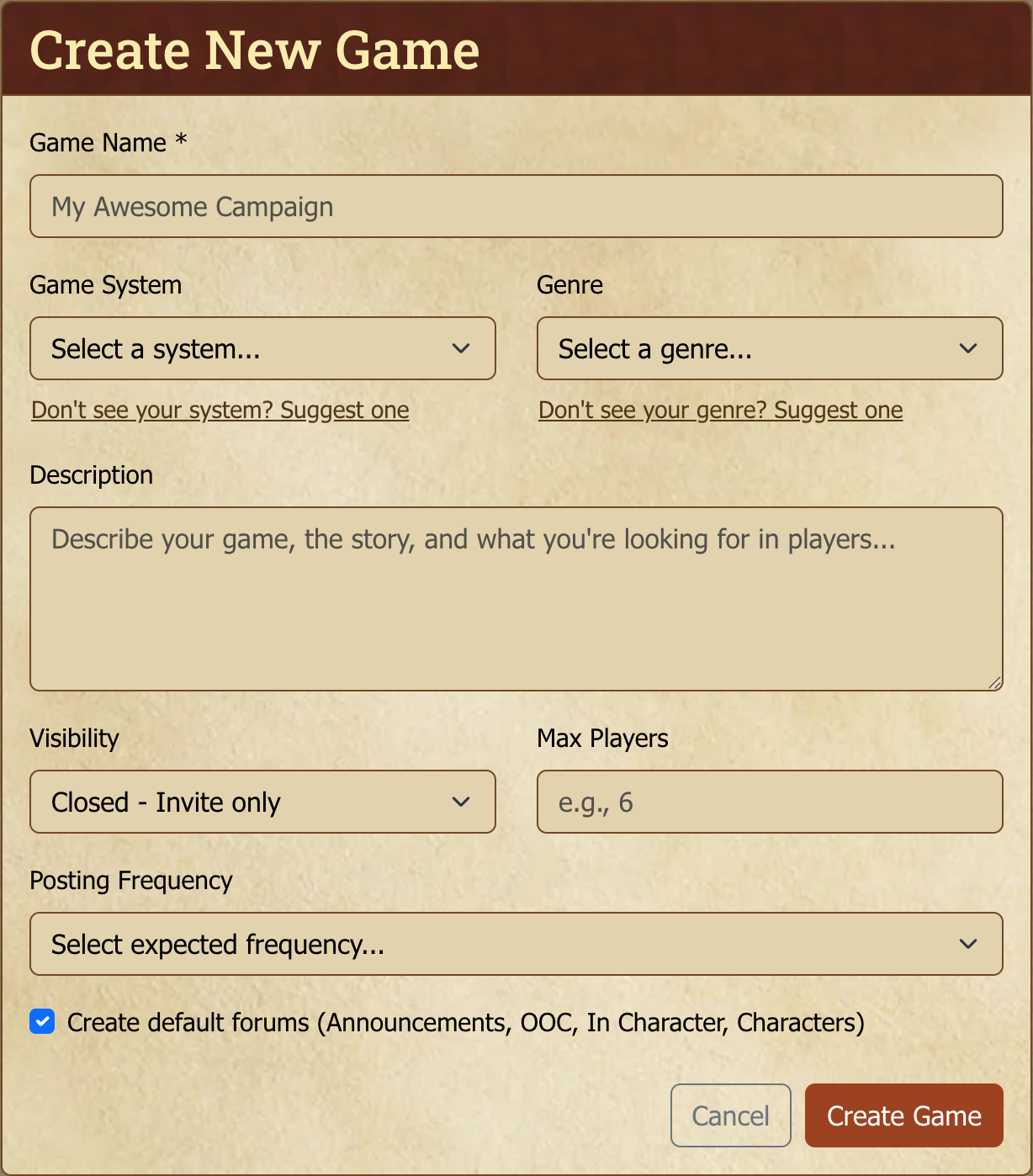
Create Game in the Games section (or the navigation menu) opens the creation form:
- Game Name — your campaign's name.
- Game System — pick from the taxonomy (D&D 5e, Pathfinder, GURPS, World of Darkness, Fate, anything in there). If your system isn't listed, you can request it — community moderators approve new systems.
- Genre — a genre tag for browsability (fantasy, sci-fi, horror, modern, etc.).
- Description — your pitch. Premise, tone, what you're hoping to build with the players.
- Visibility — who can see and access the game (covered below).
- Max Players — optional cap (1–50). Useful to set even if you're not certain — you can change it later.
- Posting Frequency — set expectations honestly: Multiple per day, 1–2 per day, Every few days, Weekly, or Casual/No schedule. This is what applicants see and self-filter on. Lying makes everyone miserable later.
- Create Default Forums — checks to auto-create starter forums (Announcements, OOC, In Character, Characters). Uncheck if you want to build the forum structure from scratch.
Submit, and you'll arrive on your brand-new game's home page.
Game settings
You can edit your game's settings anytime from its settings panel. Everything on the creation form lives here, plus:
- Game Status — Active, Archived, or Completed. Active is the default; Completed marks the game as finished (still readable, no new posts expected); Archived hides from active listings.
- Game Features → Allow post reactions — off by default (opt-in). Turn it on to let members add orc-emoji reactions to posts in your game; turn it off to hide the reaction bar and stop new reactions (existing reactions are retained but not shown).
- Game Features → Let players add their own calendar events — off by default (opt-in). Turn it on to let players add events to the game Calendar (for example, marking when they'll be away) and edit or delete the ones they created. You can always manage every event regardless of this setting. Turning it back off leaves any existing player events in place but stops players from adding or changing them.
Game visibility
The visibility setting controls who can see and access the game:
| Setting | Who can see | Who can join | Who can post |
|---|---|---|---|
| Public | Anyone | Anyone | Anyone |
| Open | Anyone | Anyone | Members only |
| Read Only | Anyone | Invite only | Members only |
| Closed (default) | Anyone (listed) | Invite/application | Members only |
| Private | Members only | Invite only | Members only |
Most campaigns run as Closed — listed in the directory so prospective players find you, but joining is gated by application or invite. Private is the right choice for a campaign where even the existence shouldn't be public knowledge (one-shots with close friends, sensitive content, etc.).
Forum management
Creating forums
New Forum inside a game adds a forum. Name, description, default visibility. Make as many as you need — common patterns include one per location, one per faction, one per character's solo storyline, plus the always-useful Announcements / OOC / Characters baseline.
Pick a Parent Forum to put the new forum inside another one. Forums nest up to four levels deep, for example Power and Politics → Clans → Anarchs → Council Chamber. A forum that only holds other forums works well as a folder: in Edit Forum, untick Allow topics in this forum so nobody starts a topic there by mistake.
Moving a forum
Open the forum, then Manage Forum → Edit Forum, and choose where it goes under Inside, or pick Nothing to make it a top-level forum. The forum moves with everything in it. The menu only offers places it can go: never inside itself, and never anywhere that would make the tree deeper than four levels.
A forum set to Inherit from parent takes its read access from the forum it's in, so moving it can change who can read it, and the same goes for everything inside it. If the move would let more people read anything, for example taking a forum out of a GM-only folder, Edit Forum lists those forums and their old and new access, and waits for you to click Move anyway. A move that keeps access the same, or narrows it, saves straight away.
Reordering forums
Reorder opens a drag-and-drop interface showing your forums as a tree. Drag a forum up or down among the forums beside it, or use the arrows; it moves with everything inside it. The order is what players see in the forum sidebar and on the Forums tab. To put a forum inside a different one, use Edit Forum (see Moving a forum above).
Forum access controls
Each forum has its own visibility settings, independent of the game's overall visibility. Common patterns:
- All members — the default for most forums.
- GM-only — planning forums, NPC notes, behind-the-screen prep.
- Specific roles — say, a forum visible only to assistant GMs.
- Specific players — a private forum for one character's solo arc.
The Visibility Dashboard (below) is a good place to audit forum visibility settings periodically — especially after restructuring.
Hiding signatures
Signatures can break the flow of in-character play. To hide them for everyone in a forum, open it and choose Manage Forum → Edit Forum → Hide signatures in this forum. That covers every forum inside it too, so setting it once on an In Character folder covers every location forum under it. For a single thread, use Hide Signatures in the topic's manage menu. These settings only ever hide: a thread inside a hidden forum can't switch signatures back on. Players can also leave their own signature off any one post.
Topic management
Standard GM levers on individual topics:
Pinning
Pin important topics to the top of their forum — rules references, character rosters, table-wide announcements. Pinned topics always render above unpinned ones.
Ordering a forum's topics
To put a forum in a fixed order — a lore wiki in alphabetical order, say — open the forum, choose Manage Forum → Order Topics, and sort it in one click:
- A–Z — by title, ignoring capitals and reading numbers as numbers, so "Chapter 2" comes before "Chapter 10". Titles are taken as written: "The Docks" sorts under T.
- Oldest first or Newest first — by when each topic was started.
Then drag topics, or use the arrows, to adjust, and click Save Order. Every reader sees the forum in that order.
Only pinned topics hold an order; the rest follow them by latest activity. If some of the forum's topics aren't pinned, the panel says how many and offers Pin and include them: they join the bottom of the list, and saving pins them in place. A topic started later arrives unpinned, below the ordered ones — pin it and sort again to file it.
Locking
Lock prevents new posts. Locked topics stay readable. Useful for completed story arcs, finalized character sheets, or the inevitable "this is now the wrong topic, please move the conversation to X" moment.
Default post types
Set a forum's default post type (IC, OOC, or Normal) so players don't have to toggle it on every post. The IC forum stays IC, the OOC forum stays OOC, less friction.
Topic visibility
Override the forum default at the topic level — a GM-only topic in a player-visible forum, a player-pair-only topic for a side conversation, etc. The topic's visibility takes precedence over the forum's.
Posting deadlines
Posting Deadlines on a topic show a countdown widget to everyone in the topic and surface overdue players in the GM's status panel. Useful for keeping pace, signaling absences, structuring pre-game ramp-up. See Forums and Posting for the full deadline guide, including the player-side view.
Bulk topic actions
Selection Mode lets you apply the same action across multiple topics at once:
- Open the forum's manage menu (dropdown next to the forum title).
- Choose Select Topics. Checkboxes appear on every topic; a selection toolbar appears at the top.
- Tick the topics you want. All / None quick-selects in the toolbar.
- Click the bulk action: Lock / Unlock, Pin / Unpin, Move (to a different forum — see below for cross-game), Merge (combine the selected topics into one — see below), or Delete (soft-delete; recoverable from the Recycle Bin).
The Move destination can be a forum in the same game or in a different game you also GM (cross-game move).
Applications and recruitment discussions can't be moved, for now. A moved application would still behave as an application in its new forum, and it could not be moved back, so Move is greyed out on those topics and a bulk move that includes one is refused. For the same reason, posts can't be split out of an application into a new topic, though moving them into an existing topic still works. To carry an applicant's thread into play, start a new topic in the game and link back to the application.
Under the hood: cross-game topic move
Moving a topic into a different game is supported, but it comes with two constraints:
- You must be a GM (or assistant GM) of both the source and the destination games. Single-game GM permission isn't enough on its own. Community moderators can move topics across any pair of games.
- Role-restricted permissions reset on a cross-game move. Topic-level access controls that referenced roles in the source game (such as "GM-only" or "assistant-only") revert to game-members-level access in the destination, because roles are scoped per game and don't carry across. Whisper and private-block audiences inside individual posts pin to the user IDs they originally referenced, so those audience semantics survive, but you may still need to re-set topic-level visibility after the move.
This is useful for porting setting content (lore topics, character resources, NPC reference threads) between related games: a sequel campaign, a parallel table running the same world, a clone you're prepping. It's less useful as a routine habit, though. If you find yourself moving topics across games often, it's usually a sign the content belongs in a shared Pages or Blog resource that both games link to instead.
- Cancel exits Selection Mode without applying anything.
A similar selection mode exists at the post level within a topic — useful for merging several short replies into one consolidated post. Select Posts from the topic's manage menu.
Merging topics
If one conversation ended up split across several threads — a battle that got a fresh topic each round, a discussion someone restarted rather than replying to — Merge folds them back into one.
Select two or more topics, click Merge, and pick which one is the destination. Everything else is merged into it:
- Posts are re-ordered by date, interleaved across all the merged topics — not stacked one thread after another. A merged battle thread reads in the order it was actually played. Dice rolls stay attached to their posts.
- The destination keeps its own title, access settings, and pinned state. Nothing about it changes except that it now has more posts.
- The merged topics move to the Recycle Bin, and their old links forward to the destination — so bookmarks, quoted permalinks and notifications still work rather than showing "not found".
- Followers are combined. If you were watching any of the merged topics, you're watching the destination. Unread counts add up, so posts you hadn't read stay unread.
- Posting deadlines on the merged topics are switched off, since the topic they applied to no longer holds the conversation. Set a new deadline on the destination if you still need one.
Merging is limited to topics in one game (they can be in different forums of that game). Move topics together first if they're spread across games.
Why a topic sometimes gets skipped
A topic can be the designated discussion thread for something else on the site — an announcement, a game advertisement, an application, or a moderation report. Those topics are left out of the merge rather than blocking it: the rest are merged and a note names the ones that were skipped and why.
The reasoning is that folding such a topic away would quietly relocate a conversation that something else links to by name. If every topic you selected turns out to be linked, the merge is refused outright and tells you which ones got in the way. Such a topic can still be the destination — it survives the merge with its link intact.
Merging cannot be undone from the interface. The merged topics are recoverable from the Recycle Bin, but their posts stay in the destination.
Converting a topic to a Page
A topic that's really reference material, such as house rules, a lore dump, or an NPC roster, can become a Page resource via Convert to Page in the topic's Manage menu. The page inherits the topic's title and content, is scoped to your game (it shows up on the Resources tab), and the original topic is moved to the Recycle Bin (recoverable). Any attached files come along.
- Single-post topic converts directly. The post's body becomes the page.
- Multi-post topic: the posts are concatenated, with a horizontal rule between each by default. This is only allowed when every post is yours and the posts share one editor format. If the formats differ, you'll be offered a "merge as HTML" fallback (the resulting page is HTML-format).
- You pick the page's view and edit access in the dialog; refine it later from the page itself.
A topic with whispered/GM-only posts, or with inline private blocks, can't be converted. That hidden content would be exposed on the page, so it needs to be cleared first.
Recycle Bin
Every game has a Recycle Bin holding soft-deleted forums, topics, and posts. From the game's manage menu, the Recycle Bin shows what was deleted, who deleted it, when, and offers the Restore function for anything you want back. Hard-deletion (permanent removal) is a separate action available only to community moderators.
Member management
Inviting players
Invite on the game page opens a user search. Pick by their username; they receive a notification with the invitation and can accept or decline the game invite.
Member roles
Each member has a role that determines permissions:
- GM (Game Master) — full control: game settings, all forums, all topics, all members. The owner.
- Assistant GM — nearly the same as GM: forum and topic management, member moves, all the moderation tools. Cannot delete the game or transfer ownership.
- Player — posts in forums they can access, rolls dice, links characters, fully plays.
- Reader — can view forums they can access but can't post. Useful for spectators, players on temporary leave, or "I want to follow this campaign but I'm not playing" friends.
Role changes happen on the Members tab, in the dropdown next to each member's name.
Removing members
Remove a member from the game when needed. For closed/private games this revokes their access; their existing posts remain (they are a part of the game's history). For public/open games the member leaves but can theoretically rejoin unless you also adjust visibility.
Announcements
The Announcements tab on a game page is where GMs publish important notices visible to all members, such as game-on-hiatus notes, schedule changes, "we're recruiting again", so anything you want to surface above the regular flow of posts.
Creating an announcement
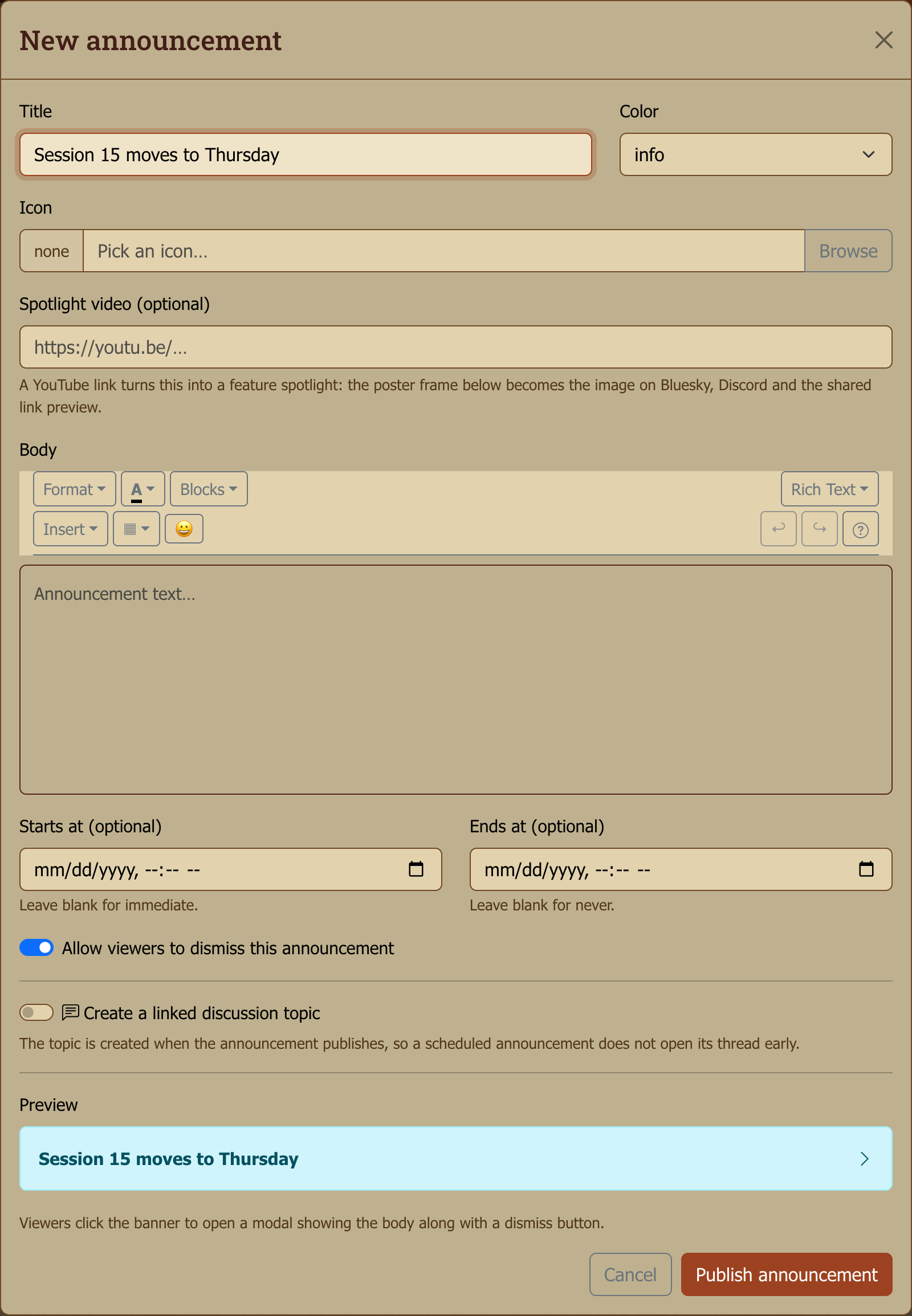
Announcements → New Announcement opens the editor:
- Title — short headline
- Body — the announcement content (full editor available)
- Icon — an optional Bootstrap icon for visual recognition
- Color variant — info, warning, success, danger; sets the banner color
- Dismissible — toggle whether members can dismiss it after reading
- Start / End times — optional. Schedule a future-dated announcement, or set an auto-expire date
Active announcements render as banners on the game home for all members. Members with the announcement dismissed (if dismissible) don't see it again unless you edit and republish.
Statuses
Announcements appear in the management list as:
- Active — currently shown to members
- Scheduled — start time hasn't arrived yet; will go live automatically
- Expired — end time has passed; no longer shown
Edit any announcement to adjust content, scheduling, or color variant. Delete to remove permanently.
Away messages
Running several games and need a break? Instead of announcing it in each one, post an away message from your profile menu. It appears in every game you run or play in at once. Your note and a notification to every member go only to games you run.
A member's away message shows in this list marked away message. You can delete it from your game, but only its author can edit it.
Visibility Dashboard
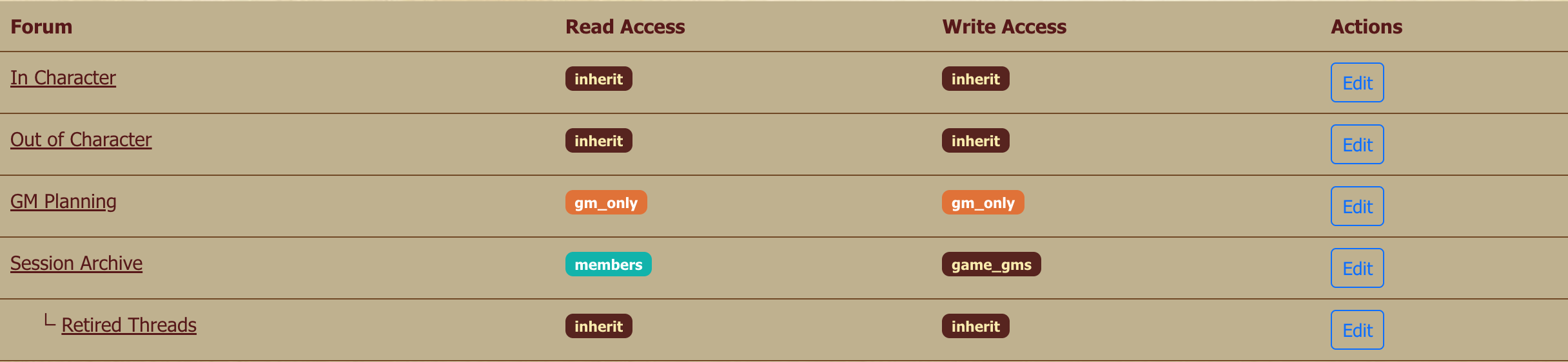
The Visibility Dashboard is the audit-and-edit surface for visibility settings across your game. Two tabs:
- Forums — every forum in the game, with its read-access and write-access badges. Edit any forum's visibility from this tab without navigating into the forum first.
- Topics with custom access — every topic that has visibility settings overriding its forum's default. Lets you spot one-off restrictions that might be stale or unintended.
For each row, an Edit button opens a per-item modal where you can change visibility (public / open / members / role-restricted / specific users). An Add Access Rule action attaches an additional role or user grant to a forum or topic (useful for "this topic is GM-only plus the assistant GM").
Why it's per-item, not bulk
There's no multi-select for batch visibility changes; each forum or topic is edited individually. The dashboard's real value is the inventory paired with jump-to-edit, not bulk apply. If you find yourself making the same visibility change across many topics, that's usually a sign those topics should live under a forum that has that visibility as its default instead.
Worth a look periodically — after a restructure, before sensitive content goes up, or when adding a new player to a game with many fine-grained restrictions.
How access settings combine
Access is decided from the most specific setting outward: topic, then forum, then game. A topic or forum set to inherit simply hands the decision up to the next level.
When you pick those users, the search lists your game's members first, each tagged game member, so two similar usernames can't be confused. Anyone else matching the search appears below them, untagged.
So when you restrict a topic to specific users and name someone, that person can read (and, with a write grant, post in) that topic even if the forum or the game would otherwise keep them out. That covers someone who isn't a member, or an applicant after recruitment has closed. A few things still apply on top of a grant:
- Explicit blocks win. If you also hide the topic from that person, they can't see it.
- Locks and archiving still apply. Nobody but GMs posts in a locked topic or forum, or in a completed or archived game.
- Leaving the game ends it. A grant stops giving access beyond the forum's and game's own settings once that person leaves or is removed from the game, unless they kept access after leaving. If they rejoin, it works again.
- Moderator-only and private-notes forums are never opened by a topic grant.
Someone who reaches a topic only through a grant won't see it listed in the forum or in search, because they can't open the forum itself. Send them the link, or rely on their reply notifications.
Player View
Player View shows you your own game exactly as somebody else sees it — the same pages, with their permissions rather than yours. It's the quickest way to answer "can my players actually see this?" without asking one of them. Open it from the Player View button on the game header.
There are three things you can view as:
- A specific player — anyone active in your game, listed by name with their role. Use this to check what one person can reach, for instance after changing a forum's access or adding a role-restricted topic.
- Hypothetical Applicant — somebody who has applied to your game. You don't need a real applicant for this; it works from the moment you have an advertisement. Use it to check what an applicant will see once they apply.
- General User — a signed-in visitor with no connection to your game at all, looking at it before deciding whether to apply.
Why "General User" and "Hypothetical Applicant" are different
Your advertisement decides who its access applies to: nobody, applicants only, or anyone who can see the advertisement. If you chose applicants only, then someone browsing before they apply sees less than someone who has applied — so the two previews genuinely differ, and the General User one is what a prospective player meets first. If you chose anyone, the two look the same.
While Player View is active, a banner across the top names who you're viewing as, with a way to leave. Everything on the page follows that person, including buttons — so if you're previewing a General User on a game that's recruiting, you'll see the Apply Now button they'd see. Your own GM controls are hidden for the duration, because they aren't part of what that person sees.
Player View never changes anything. It's a read-only lens on your own game, and nobody is notified.
Recruitment
The full recruitment system has its own guide: Recruitment & Application Process covers ad creation, the lifecycle (draft → scheduled → active → grace → closed), the Applications tab, and the player-side.
A quick orientation here:
- Recruitment tab on a game page is where GMs create and manage advertisements.
- Applications tab is where you review submitted applications (private threads between you and each applicant).
- For each application: Approve (assign a role — Player, Reader, or Assistant GM), Reject (optionally with a message), or leave Pending while the conversation continues.

Characters in your game
GMs and players both link characters from the Characters tab. Linking adds the character to the game's roster and makes it postable. See Characters, Resources, and Maps for sheet linking and posting-as-character mechanics.
Resources
The Resources tab connects Pages (wiki content), Blogs (journals), Maps (interactive canvases), Downloads (file resources), and Campaign Calendars to your game.
Link Resource from the Resources tab adds an existing resource to your game. The underlying content stays independent (a Page can be linked to multiple games); linking just surfaces it on this game's Resources tab.
GMs add and remove resource links anytime. Removing a link doesn't delete the resource itself.
Who can see a linked resource
Each resource carries its own visibility setting, and "All game members" means members of the games the resource is linked to — not everyone on the site. A resource set that way is hidden from non-members even when your game itself is public, which is usually what you want for handouts and player-facing notes.
Two consequences worth knowing:
- A resource that isn't linked to any game has no members to check, so "All game members" leaves it visible only to you. Link it to a game first, or use "Anyone signed in".
- Archiving a game removes it from that check. A download linked only to an archived game behaves as unlinked.
"Anyone signed in" means any logged-in Myth-Weavers member — it is not visible to logged-out visitors.
Game calendar & events
The Calendar tab is your game's event scheduler. This means sessions, in-game deadlines, and milestone dates. Game events are visible to all members and surface in their personal calendar view as well.
By default only GMs add and manage game events. If you'd like players to mark their own dates — planned absences, availability, and the like — enable Game Features → Let players add their own calendar events in game settings. Players can then add events and manage the ones they created; you retain full control over every event. GM-created events can also announce to the game's Discord/Bluesky integrations; player-created events stay in-game and never broadcast to those channels.
See Calendar, Events, and Notifications for the full feature: recurring events, ICS feed export, notification tuning.
Game cloning
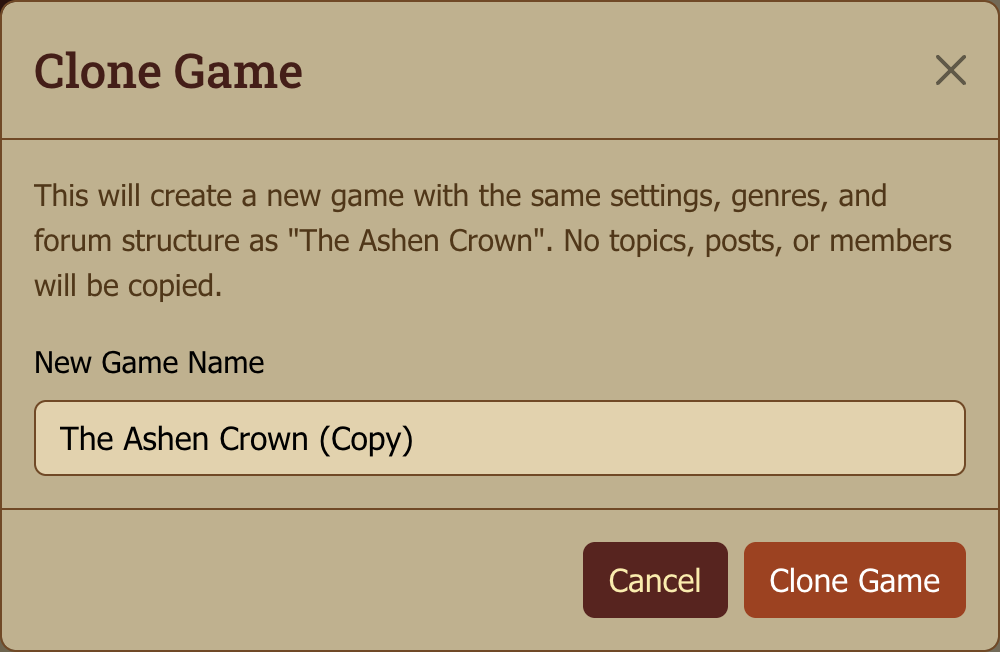
Clone copies a game's settings and forum structure into a fresh game — without posts or members. Useful for:
- Running the same system or scenario for a different group.
- Starting a sequel campaign with similar visibility / forum layout.
- Backing up a working configuration before experimenting with major changes.
Clone from the game actions menu.
Merging two games
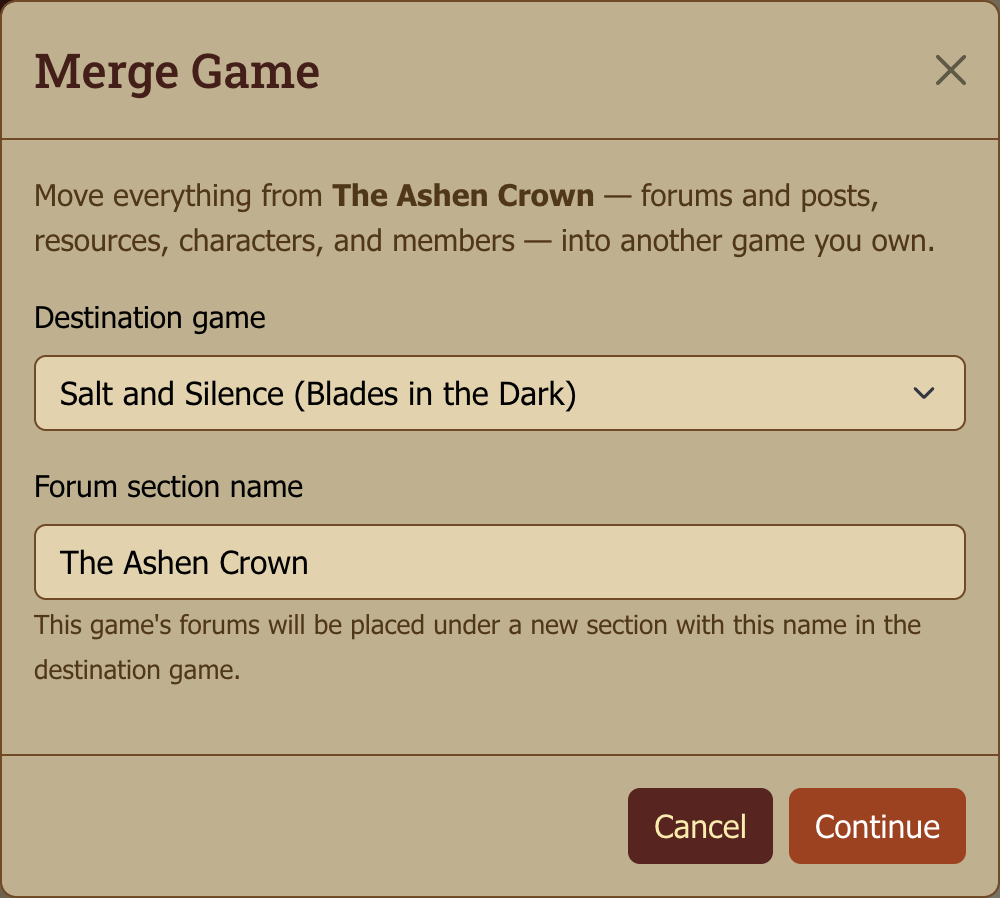
If the same campaign exists as two separate games, (most commonly an imported OGMW archive alongside its continuation here), Merge Into Another Game (game actions menu, owner only) folds one game into the other:
- All forums, topics, and posts move into the destination, grouped under a new forum section named after the merged game (you can change the name in the dialog).
- Linked resources (pages, blogs, maps, downloads, campaign calendars), characters, and game calendar events move along.
- Members are combined. Anyone in both games keeps the higher of their two roles; pending applicants of the merged game are not carried over.
- The merged game is retired: it disappears from listings, and links to it (including old links to its topics and posts) redirect to the destination.
Pick the richer game as the destination. The merge brings content into it and the destination's own settings, nav, and structure are untouched.
You must own both games, and neither can still be syncing from Baldr. Cut the destination over first if it's still mirroring. Merging cannot be undone, so read the confirmation summary carefully.
Game lifecycle
A game's Status is one of four values, set from the game actions menu (Archive, Unarchive, or Change Status):
| Status | Posting | Recruitment | Visibility | Use when |
|---|---|---|---|---|
| Active | Open | Available | Normal listings | Normal play. |
| Paused | Open | Available | Marked "paused" | Temporary slowdown — players are taking a few weeks off, holidays, GM travel. Cosmetic signal; the game still accepts posts. |
| Completed | Open | n/a | Marked "completed" | The campaign reached its end. Posts and edits still allowed (epilogues, retrospectives, "let me clean up that one bit"); the badge signals the story is done. |
| Archived | Read-only | Auto-closed | Hidden from active listings | Long-term shelving. New posts blocked, active advertisements auto-close, pending applications auto-reject, the Calendar and Recruitment tabs disappear from the game's nav. |
Paused and Completed are cosmetic — they're visual badges, not enforcement states. Archive is the only status that locks posting; everything else stays writable.
Status changes notify all game members so the table knows the state shifted. Unarchive (or any other status flip from Archived) re-opens posting and brings the game back into active listings.
Automatic archiving
A game with no posts for a year is archived automatically. Nothing else about the game matters — not its visibility, not how many members it has, not how long it ran before it went quiet. Only posts count: a game gets a fresh year every time somebody posts in it.
This exists because play-by-post games almost never end. They go quiet, the GM drifts away, and the game sits on every member's active-games list forever — not alive, not finished, and with nobody left holding the button to shelve it.
What you get is the ordinary archive, run on your behalf: the game is de-listed, any active advertisement closes, pending applications are rejected, and every member is notified. That notification is the point — it's how you find out, and Unarchive is one click away if the timing was wrong.
Three things it will not do:
- It won't touch a game that's recruiting. A live advertisement means the game is looking for players, whatever the post history says.
- It won't archive the same game twice. Unarchive a game and it's left alone from then on, indefinitely, unless it gets played again and then goes quiet for another full year.
- It won't archive a game that was never played. A game with no posts at all is a game that never started, which is a different thing from one that stopped.
[GM]
If a year is too short for the way you run, post something. An OOC "still here, still planning" resets the clock, and it tells your players the same thing.
If it archived a game you weren't done with, unarchive it and carry on — the job won't come back for it. Nothing is lost either way: an archived game keeps every post, and archiving is reversible.
Moving topics out of an archived game: archiving locks posting, but Move Topic (Manage Topic menu) stays available so you can still relocate a thread into an active game, or into another forum of the same archived game. Every other Manage Topic action (rename, pin/lock, access, delete, and the rest) is disabled while the game is archived; Move is the one exception. This is the per-topic counterpart to Merge Into Another Game, which folds an entire archived game into its continuation at once.
[GM]
When to archive vs leave Active: archive when the game is genuinely shelved — players have moved on, you don't expect new posts for months, and you want to stop accepting new applications. For the "dead but I can't bring myself to admit it" case, leaving it Active is still fine — but know that a year with no posts archives it for you, and that this is reversible, not a deletion.
When to use Paused vs Completed: Paused implies "we're coming back"; Completed implies "the story is told." Both keep the game open for writing — the badge is a signal to your members and to anyone browsing.
Ownership transfer
If you need to hand off GM duties, Transfer Ownership from the game actions menu searches for a target user, confirms, and reassigns. The new owner becomes the primary GM; you're reassigned to a Player role (or whichever role you prefer; you can adjust afterward).
Use cases: someone IRL is taking over, you're stepping back from GMing but want to stay as a player, the campaign is being handed off to a co-GM.
Integrations
Myth-Weavers supports external integrations to bridge your game with other platforms. Integrations are a supporter-tier feature; see Account Settings for tier details.
Discord
Connect a Discord webhook so new posts, applications, and other game events ping a Discord channel. Useful for keeping a Discord server up to date on a game running here, or for nudging players who live in Discord notifications.
Bluesky
Connect to Bluesky to share game updates and announcements with your Bluesky followers. Recruiting? A Bluesky announcement broadens the audience past the site's directory.
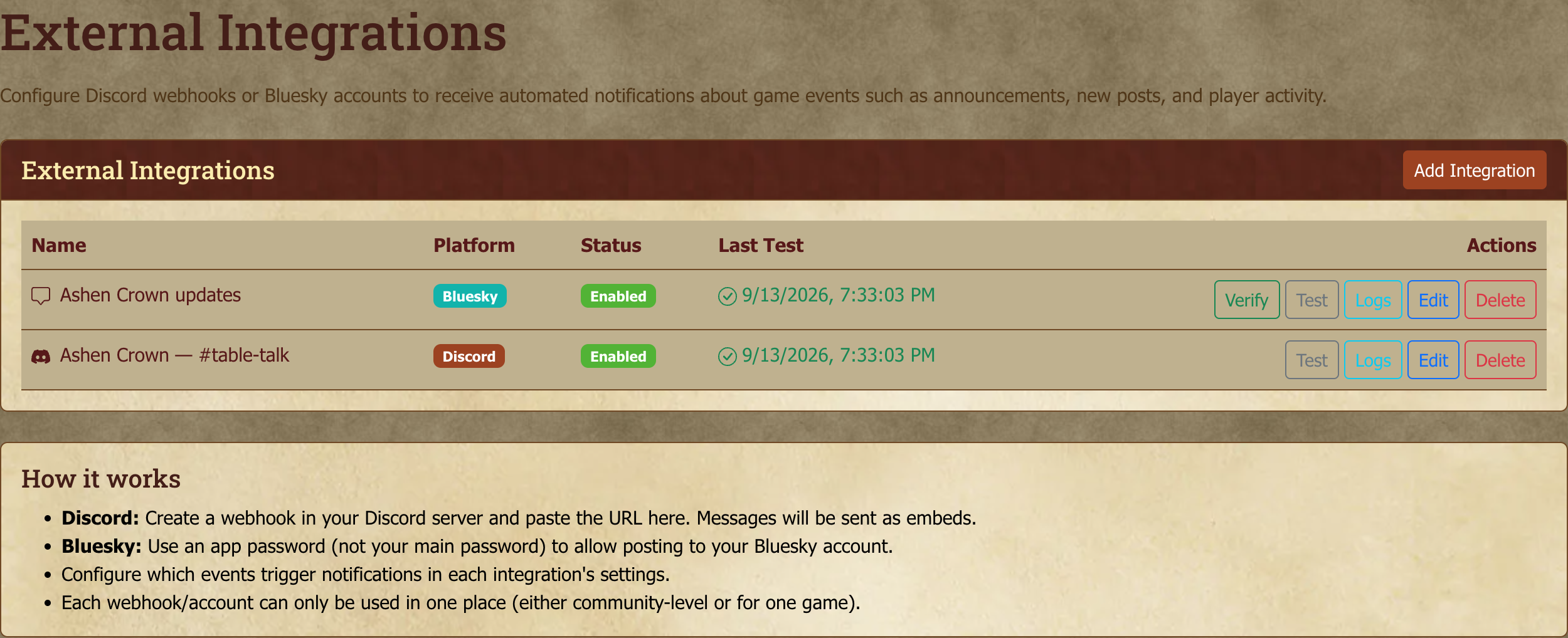
Setting up an integration
- Game Settings → Integrations (or the Integrations link on the game page).
- Add Integration and pick the platform.
- Provide the credentials (Discord webhook URL, Bluesky handle, etc.).
- Configure which events trigger notifications.
- Check the integration log to verify everything's flowing.
Under the hood: webhook reliability
Integrations fire asynchronously, after the triggering event has committed. A flaky Discord webhook URL won't slow your posting down at all; the worst case is that the integration fails quietly in the background. The integration log surfaces those failures, so check it if you notice notifications going missing.
Recruitment announcements
Publishing an advertisement announces your game on the community's own Discord and Bluesky feeds, separately from any integration you set up yourself. Each game is announced at most once a week, so closing an advertisement and republishing it a few days later doesn't post twice — see Recruitment & Application Process. An advertisement with Discoverable turned off is never announced to those feeds, though it still runs and anyone who can see your game can still find and apply to it.
Next steps
- Recruitment & Application Process — the deep dive on advertisements and application management.
- Forums, Topics, and Posting — the player-side orientation, useful for understanding what your players experience.
- Account Settings — for the personal account side (security, notifications, supporter status).