
Calendar, Events, and Notifications
This guide covers two related-but-distinct systems: the Calendar (events, schedules, session planning) and Notifications (real-time alerts, email digests, push). Both are how Myth-Weavers tells you something happened without you having to refresh every browser tab on the planet.
Calendar
A built-in calendar system that tracks sessions, in-game deadlines, real-world events, and anything else worth a date.
Calendar views
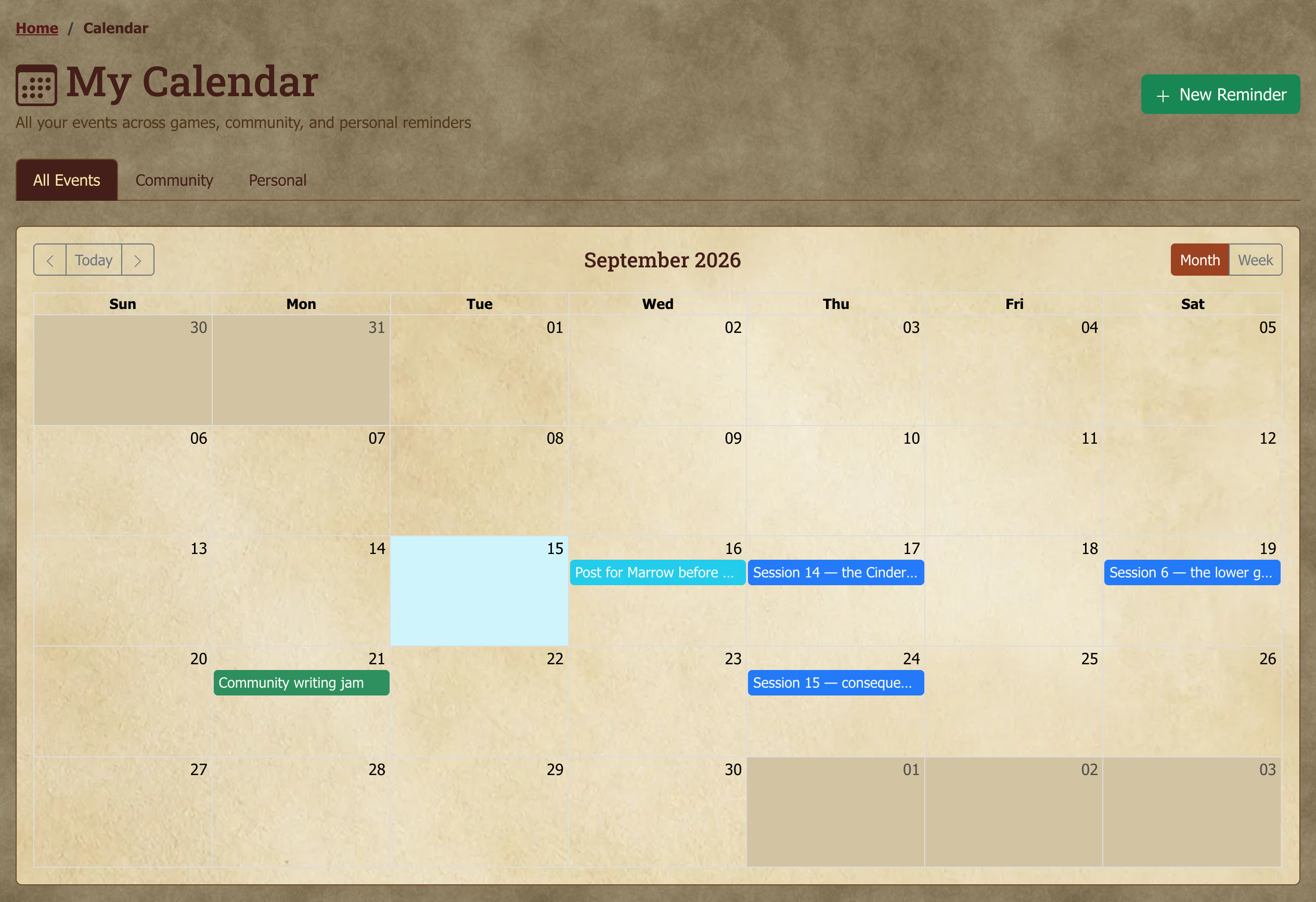
Calendar in the navigation opens it. Two views:
- Month View — a traditional grid showing events across the month. Click any day to see events or create one.
- List View — a chronological list of upcoming events. Better for scanning events that are up and coming.
Types of calendars
Events come from three sources, all rendered in a single unified view:
- Personal Calendar — your own private events. Only you see these.
- Game Calendars — events created within specific games (scheduled sessions, in-game deadlines, planned absences). Visible to all game members. GMs manage these by default; if a GM enables player events for the game, you can also add your own dates (like a planned absence) and edit or delete the ones you created.
- Community Calendar — site-wide events visible to everyone (community game nights, site announcements, system-specific gatherings).
Creating events
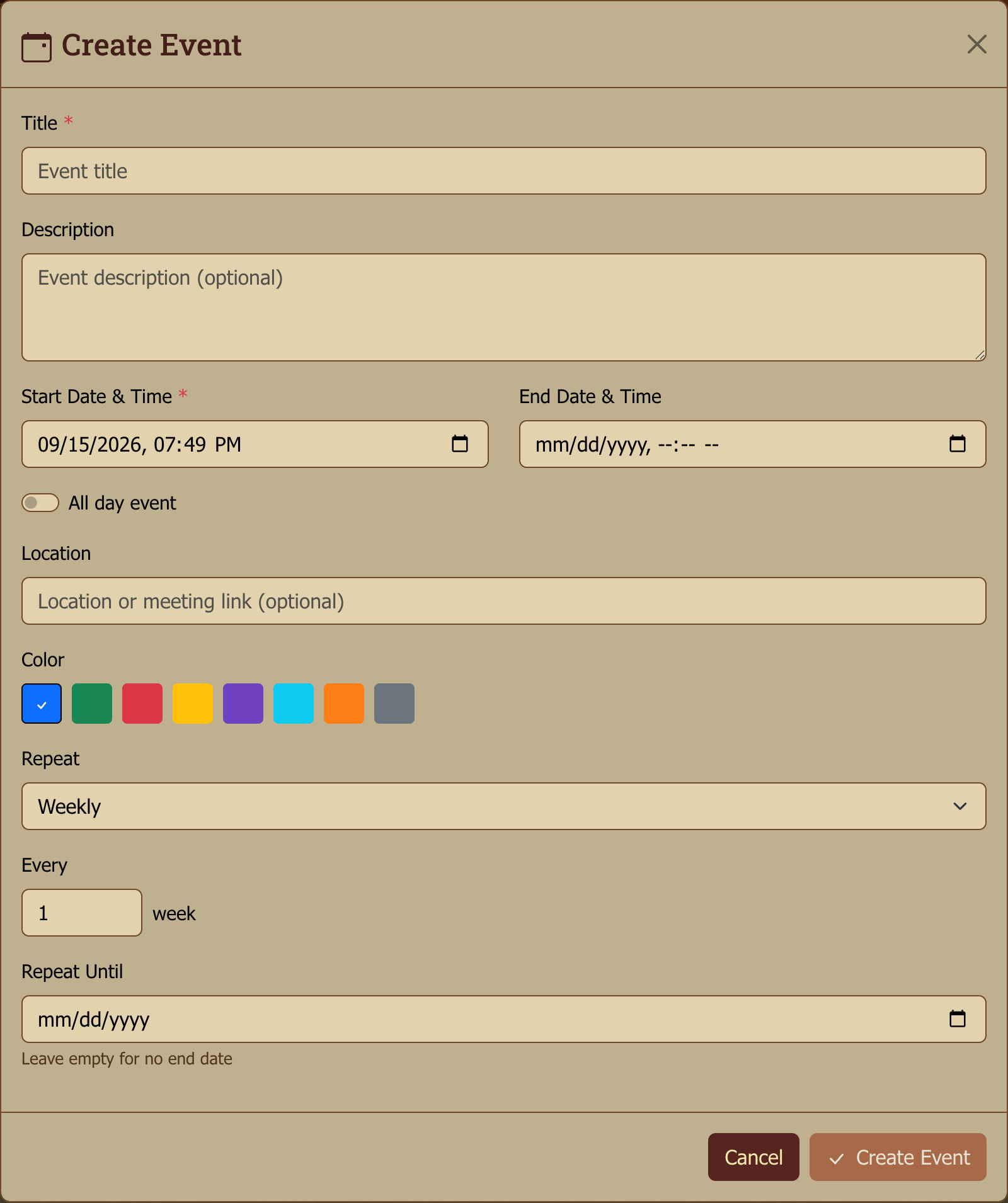
Click any day or hit New Event. The event form has:
- Title — what the event is.
- Date and time — when, with timezone support.
- Description — optional details, full editor.
- Scope — personal, game, or community.
Recurring events
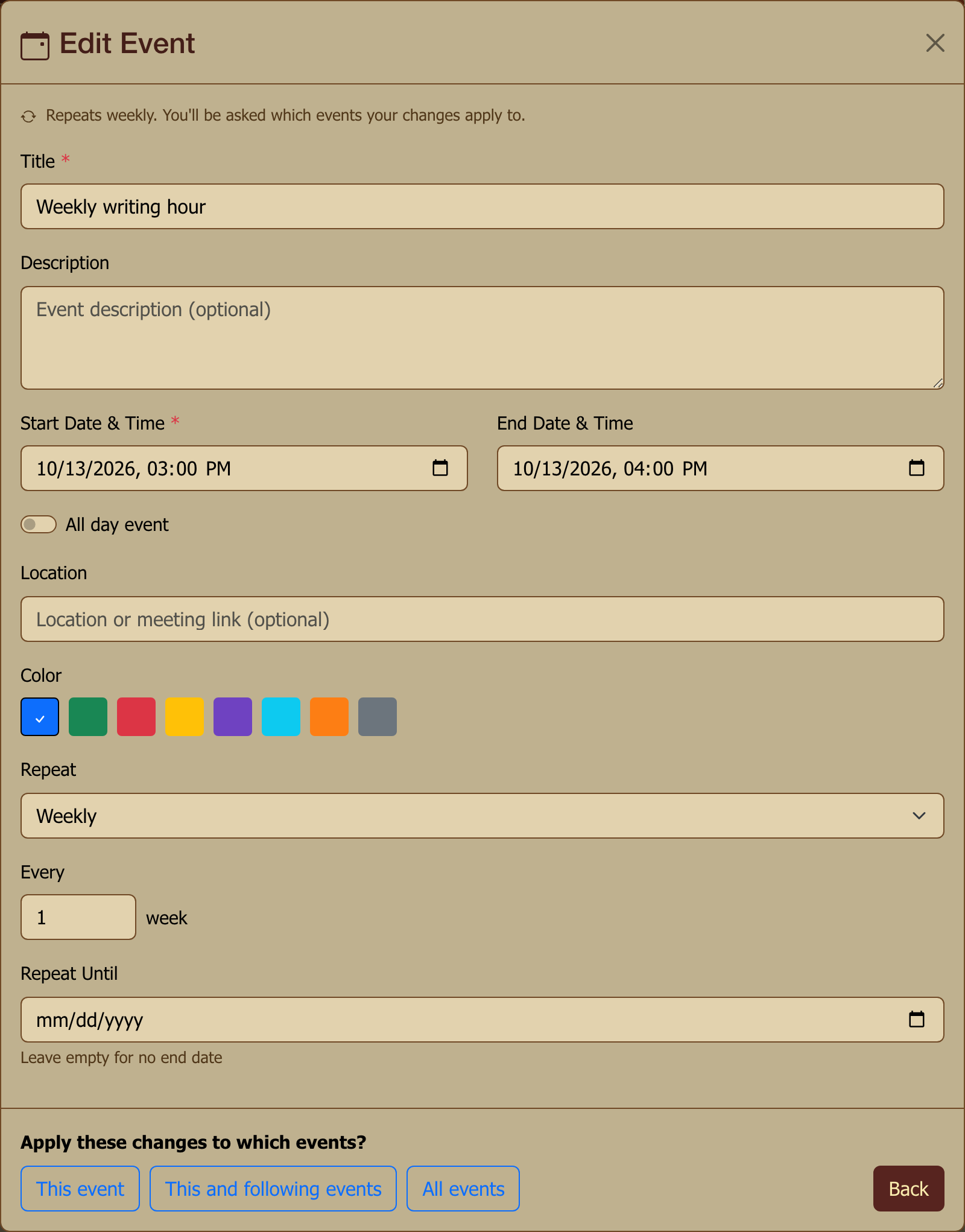
Events can recur — daily, weekly, monthly, yearly, or every few days, weeks, months or years. Useful for "Tuesday night session" or "first-of-the-month world update." Every occurrence of a repeating event says how it repeats (for example "Repeats weekly until March 3, 2027") when you open it.
When you edit or delete one occurrence, you're asked which events the change applies to:
- This event — only the one you opened. Use it to skip a week (delete) or move a single session (edit). A skipped occurrence stays skipped; it isn't added back later.
- This and following events — the one you opened and every later one. Deleting ends the series before this date. Editing starts a new series from this date with your changes, and leaves earlier occurrences as they were.
- All events — the whole series. A new title, description, location or color applies to every occurrence except ones you changed individually. A new time moves every upcoming occurrence; ones you moved individually keep their own time, and past occurrences stay as they happened. Deleting removes the whole series.
Changing how an event repeats (the pattern, the interval or the end date) applies to the series, so This event isn't offered for that.
ICS feed export
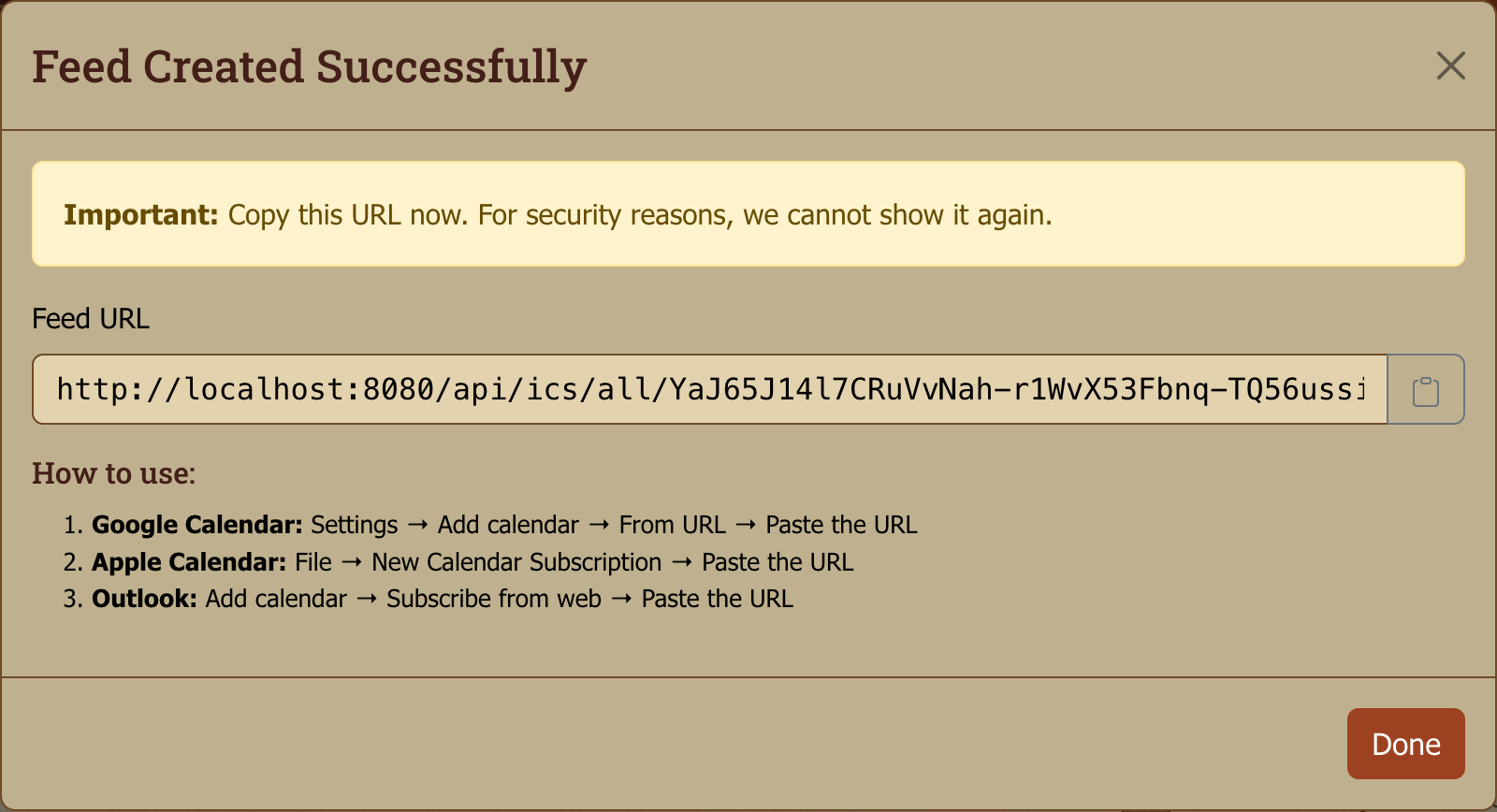
Export your calendar as an ICS feed so external calendar apps (Google Calendar, Apple Calendar, Outlook, anything ICS-compliant) can subscribe.
Account Settings → Calendar Feeds (or Calendar → Settings) generates a token-secured per-user feed URL. The feed includes events from all your calendars and updates automatically as you change them.
A campaign calendar's in-world date has a feed of its own: see Following the date in a calendar app. Those links appear in the same list, where you can revoke them.
Under the hood: how the ICS feed works
The feed URL contains a per-user token (not your password — a separate secret). External calendar apps poll the URL periodically (Google Calendar polls about every 12 hours; iOS roughly daily; Outlook varies). Changes you make in Myth-Weavers won't appear instantly in external apps — that's a polling latency thing, not a feed bug.
Treat the feed URL as a secret: anyone with it can subscribe and see your events. Regenerate the token if you've shared it accidentally.
Notifications
A flexible notification system that delivers across in-app badges, browser push, and email — with fine-grained per-game, per-forum, per-topic control.
Real-time notifications
When something happens — a reply, a mention, a game invite — a notification badge appears on the bell icon in the navigation bar. Click it for a list of your most recent notifications; Show more at the bottom of the list loads the next batch, so you can work through all of them without leaving the bell. View All opens the full inbox, with filters.
Each notification about a topic shows where it happened — the game's name, or for community topics the forum's — next to its time. So two notifications for topics that share a name, like "OOC" in two different games, are easy to tell apart.
Delivery is real-time via WebSocket — no refresh required. The bell badge updates as new notifications arrive.
Unread markers keep up too. In the games you belong to, My Games on your dashboard and a game's forum sidebar light up within a few seconds of a new post or thread appearing somewhere you can read. And when you read something in one tab or on one device, your other open tabs catch up on their own. If you have been away from a tab, it refreshes its unread markers when you come back to it.
Notification types
You receive notifications for:
- Replies — someone replied to your post
- Mentions — someone
@mentionedyou (see Forums and Posting) - Quotes — someone quoted your post
- Game Announcements — a GM posted an announcement in your game
- Community Announcements — site-wide
- Game Invites — you've been invited to join a game
- Role Changes — your role in a game was changed
- New Posts — new posts in topics you follow
- New Topics — new topics in forums you follow
- Deadline-related — deadline set, approaching, or passed (see Forums and Posting)
- Game Advertisements — a game starts recruiting in a system you follow (see below)
- Application Closing Soon — the day before a game you've applied to closes its recruitment, so you can finalize your application in time
- Away Messages — a member of your game posted an away message. From a GM you get one for each away message, naming the games you share. From a player, only the GMs of their games are notified
Game Advertisements (follow a system)
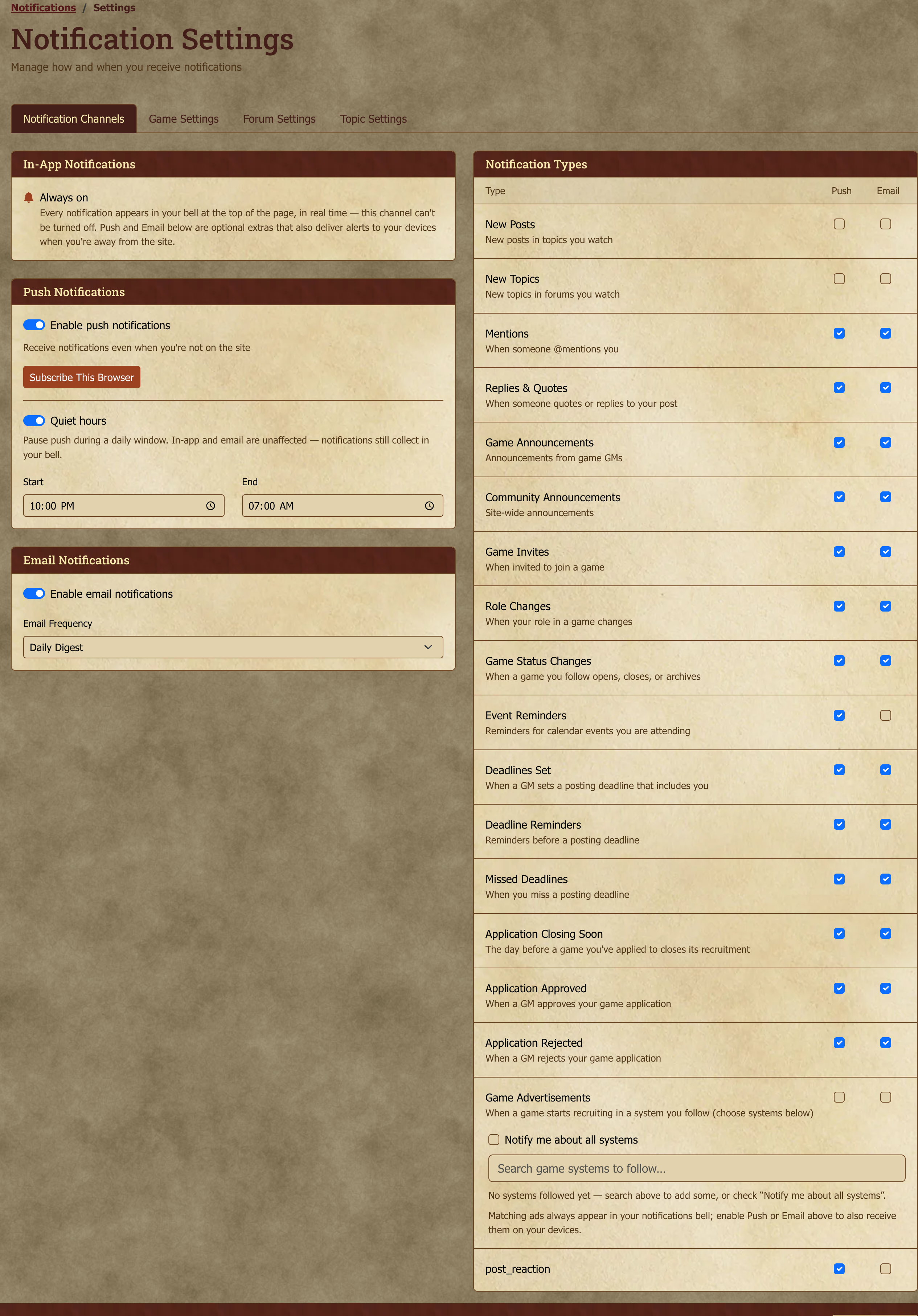
Want to hear when a new game is recruiting for the systems you play? Turn on Game Advertisements in Notification Settings → Notification Channels, then pick what to follow:
- Notify me about all systems — get a ping for every public recruitment ad that goes live, whatever the system.
- Specific systems — leave "all systems" off and search-and-add the systems you care about (D&D 5e, Pathfinder 2e, Blades in the Dark, …). Each shows as a chip you can remove anytime.
When a game master publishes (or schedules) a public recruitment ad in a system you follow, you'll get the notification. Matching ads always land in your on-site notifications bell. When you first follow a system (or "all systems"), we also switch on Email and Push for these ads to match the channels you already have enabled — so if your account email notifications are on, you'll get the ad by email without any extra step. You stay in control: uncheck Push or Email on the Game Advertisements row anytime for on-site-only. It's off until you opt in, so you'll never be spammed by systems you don't play. (A GM publishing a game will not get notified about their own ad.)
Shortcut: you don't have to come here to start following a system. Anywhere you see a system tag, whether on a recruitment ad or a game in the game directory, click it to open a quick follow toggle for that system. It writes to the same list you see above (and enables your delivery channels the same way), so you can always fine-tune from Notification Settings later.
That same box has a Browse this system link to the system's own page, which lists everything currently running in it and carries the identical follow toggle at the top. See System pages for what's there.
Push notifications
Push Notifications deliver alerts to your device even when Myth-Weavers isn't open. Works in most modern browsers; Safari on iOS requires the site be installed as a PWA (see below).
In Notification Settings you can:
- Enable push for the current browser/device.
- View and manage all subscribed devices.
- Revoke push access for specific devices (useful when you've changed phones).
Installing Myth-Weavers as a PWA
Myth-Weavers is a Progressive Web App (PWA) — you can install it on your phone or desktop so it launches like a native app, with its own icon and an app-frame window. You need to install it for push notifications to work on iOS Safari; on other platforms it's optional but pleasant.
There's no in-app install button — the browser handles the install prompt natively:
iPhone / iPad (Safari)
- Open
myth-weavers.comin Safari. - Tap the Share button (the square with the arrow pointing up).
- Scroll the share-sheet down to Add to Home Screen.
- Tap it; confirm the name; the icon appears on your home screen.
Android (Chrome)
- Open
myth-weavers.comin Chrome. - Chrome typically shows an Install app banner near the address bar — tap it. If not, open the three-dot menu → Install app or Add to Home Screen.
Desktop (Chrome / Edge / Brave)
- Open
myth-weavers.com. - Look for the install icon (a little computer-with-arrow icon) at the right end of the address bar. Click it.
- Confirm. Myth-Weavers opens in its own window from then on; it shows up in your app launcher / Start menu.
Desktop Safari (macOS)
- Open
myth-weavers.com. - File → Add to Dock (macOS 14+) or via the share menu on older versions.
Under the hood: what changes when you install
A PWA install doesn't download a separate app — it bookmarks the site with extra metadata so the OS treats it like an app: own icon, own window, no browser chrome around it. The site's service worker (already running in your normal browser visit) handles offline caching and push notifications either way; installing just makes the experience feel more native and unlocks push on iOS where it's otherwise unavailable.
Email digests
Prefer email? Configure the Email Digest cadence in notification settings:
- Immediate — an email for each notification as it happens. Noisy; useful for low-volume accounts.
- Daily digest — one summary email per day.
- Weekly digest — one summary email per week.
- Off — no email notifications.
Granular settings
Fine-grained control beyond on/off:
- Per-Type — for each notification type (replies, mentions, etc.), independently choose in-app, push, email, or any combination.
- Per-Game Overrides — override the defaults for a specific game. Mute the casual game, keep the main campaign loud.
- Per-Forum Settings — finer still: override per forum within a game.
- Per-Topic Settings — finest grain: tune a single topic.
This sounds excessive until you're in four games at once. Then it's the difference between staying on top of things and drowning.
Following without notifications (silent follow)
Sometimes you want something in your follow list but don't want to hear about every new post — a recruitment thread you're keeping an eye on, an archive forum you might revisit, a game you're bookmarking for later. That's a silent follow.
When you're following a game, forum, or topic, the Follow dropdown shows a Notify me of new posts switch. Turn it off and the follow stays put — it still appears in Followed Games and Followed Topics — but it stops sending notifications. The Follow button shows a slashed bell and (silent) so the state is obvious, and in Manage Follows silent follows carry a Silent badge. Flip the switch back on whenever you want the pings again.
This is different from Mute: muting removes the item from your follow lists entirely and suppresses everything; a silent follow keeps the item listed, just quiet.
Managing your follows for a game
Those four tiers are why a game can turn up in Followed Games on your home page when the game's own Follow button says you're not following it: the follow lives on a forum or a single thread inside the game, not on the game itself. Following one recruitment thread is enough to put the whole game in your list.
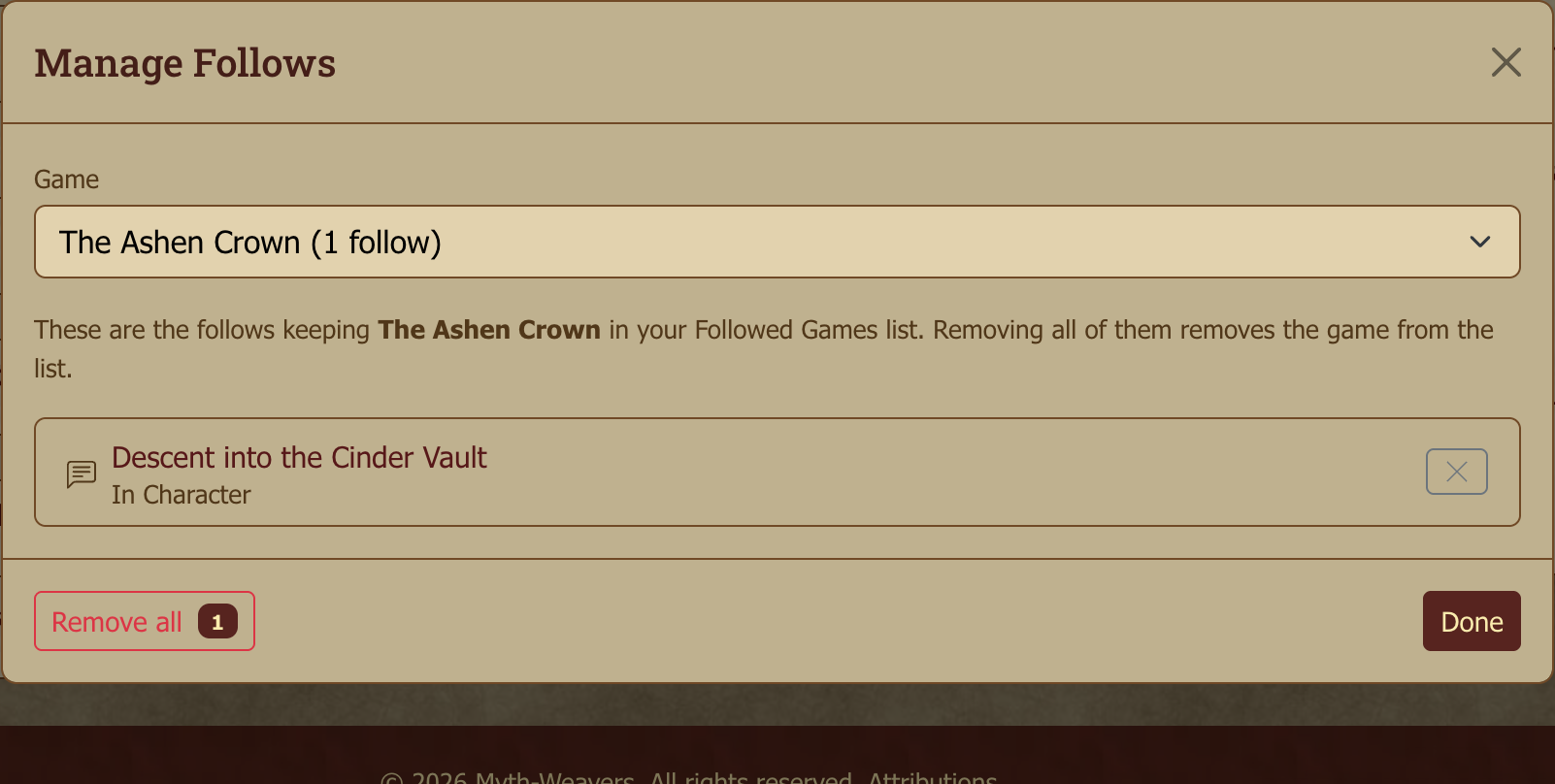
Manage Follows shows you exactly what's going on. Open it from:
- the Manage Follows link at the bottom of the Followed Games box on your home page — this version lets you pick any game you follow anything inside, and
- Manage follows in this game… in the Follow dropdown on any game, forum, or topic page, which opens straight to that game.
You'll see every follow you hold inside that game — the game itself, any forums, any threads — and you can remove them one at a time or clear the lot with Remove all. Once the last one is gone, the game leaves your Followed Games list.
A few things worth knowing:
- Muted forums and threads are left alone, including by Remove all. Muting is a deliberate choice to silence something, so clearing your follows never quietly un-mutes it. Mutes stay editable in the per-forum and per-topic settings above.
- Silent follows (a Silent badge next to the name) are still follows — they're listed and count toward the game staying in your Followed Games list. They just don't notify. Turn notifications back on from the Follow dropdown's Notify me of new posts switch, or remove them here like any other follow.
- Follows on content you can no longer open — a thread that was made GM-only, a game that went private — still appear, listed as Content you can no longer access. You can't see what they are, but you can still remove them. Previously these were the ones you could get stuck with.
- Threads you're following only because you follow the whole game or forum aren't listed separately. Removing the parent follow clears them for you.
Quiet Hours
Quiet Hours pause push notifications during specific windows (overnight, work hours, whatever). You'll find the setting inside the Push Notifications card, since that's the only channel it affects. In-app and email are unaffected, and notifications still collect in your bell; push just won't go to your phone until the window ends.
Under the hood: where notifications live
Real-time notifications are delivered via a WebSocket connection that opens when you load any page on the site. Closing the tab closes the connection; reopening reconnects and syncs anything missed. Push and email go through separate delivery paths so a flaky browser tab doesn't drop important alerts. The in-app badge is the source of truth — everything else is a fan-out.
Next steps
- Game Master's Guide — if you're ready to run your own game.
- Account Security and Settings — security, supporter status, and the notification-settings panel itself.
- Forums, Topics, and Posting — back to posting fundamentals.