
Characters, Resources, and Maps
Forums and posts are where the story gets told, but a campaign is so much more than that. Myth-Weavers hands you the tools that make a game feel like a living world: character sheets you can post as, wiki-style Pages for your lore and house rules, journal-style Blogs for in-character diaries and GM session notes, and interactive Maps for when things turn tactical.
This guide is one bundled tour; each section can stand alone, and individual content-type guides will split out as the docs evolve.
Characters
Characters are the centerpiece. Linking a sheet to a game makes it postable, browsable by the rest of the party, and the editor's sheet-field placeholders can pull live values straight from it.
This section is about using a sheet in a game. For the sheets area itself — making sheets, folders and search, saving, sharing, backups and printing — see Character Sheets.
Linking a character sheet
From a game's Characters tab, link an existing sheet (or create a new one and link it). The character appears in the game's roster immediately and is selectable in the editor's Character Selector.
When you create a new sheet you pick a template. Most templates are built for a specific system (D&D 5e, Pathfinder, and so on), but if your system isn't in the list — or you just need a lightweight sheet for an NPC you want to reference in a thread — choose Generic (system-agnostic). It gives you plain identity fields (name, type, concept, faction), a few labeled resource tracks (HP and two of your own), a freeform attributes table you name yourself (Strength, Cool, Morale — whatever your system uses), plus the shared portrait, description, languages, and notes every sheet has. Every field you fill in is insertable as a live sheet-field placeholder in your posts, just like a full system sheet.

The character list
The Characters tab is your whole party at a glance: every character's name, the player behind them, and a link to each sheet. Anyone in the game can scroll the roster and click through to read a linked sheet in full.
Printing a sheet
Print a character sheet with your browser's ordinary Print command. The site header and the sheet's toolbar are left off the printout — only the sheet itself goes on the paper.
Character sheets are drawn a little larger than a sheet of Letter or A4 paper, so your browser shrinks them slightly to fit. Chrome does this for you — a sheet prints complete on Letter, at Actual size, with the default margins. The printed text is a touch smaller than on screen; that is the fit, not a fault.
If your browser clips the right-hand edge instead of shrinking, choose Fit to page (sometimes Shrink to fit) in the print dialog, or set the scale to about 80%.
Posting as a character
Once your character is linked:
- Open the Character Selector dropdown above the editor.
- Pick the character whose voice you're using.
- Write the post as normal.
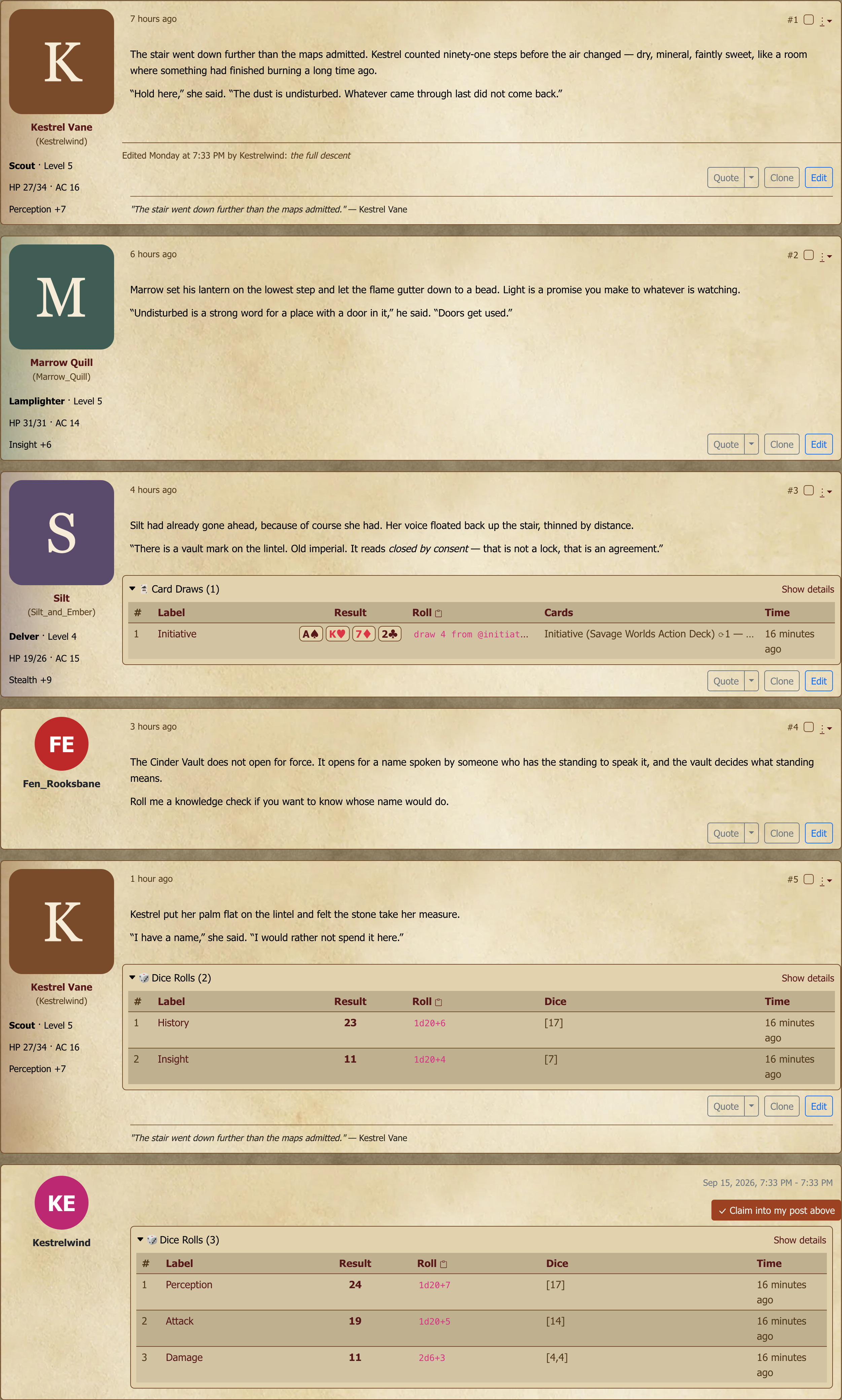
The published post displays with the character's name and avatar instead of your username. This is what makes the IC layer feel like a game and not a forum.
If your character has a Character Template configured (postbit styling, statblock, IC body wrapper, preferred color, etc.), it applies automatically — see the next section for the three template surfaces and how to set yours up.
Character templates
A character can have three distinct template surfaces that shape how their posts render. Open the template editor from your character on the game's Characters tab (the ✎ button); it's a full page with each surface in its own section, every one with its own format toggle (Rich Text / Markdown / HTML / BBCode):
- Postbit — the compact identity card shown alongside every post (name, portrait, current HP, status icons). The small box on the timeline.
- Statblock — the expanded view a reader opens with the Show statblock link on your postbit. Authored on an exact replica of the popup it appears in, so what you see is what readers get. Use it for the fuller detail that won't fit the little card.
- Content template — the IC body wrapper your post text is written inside (headers, decorative borders, signature flourishes, system stat-block layouts).
The postbit and statblock are always yours to author. Any surface can reference sheet-field placeholders ({{key}}-style references that pull live values from the sheet; see The Post Editor) so a postbit can show "HP: 23/42" without you typing those numbers every post. Templates are per-character: the rogue's understated noir postbit and the bard's riot of color travel with each character when you switch in the editor's Character Selector.
Character avatar. By default a linked character's avatar comes straight from the portrait on its sheet — set the sheet portrait and the character posts with that image, no extra step. The template editor's Character Avatar section lets you override it with a different upload or image URL just for posts. Clicking Remove on that override clears it and the avatar falls back to the sheet portrait again.
Changing the portrait later. A postbit is captured when the post is made, not looked up fresh each time someone reads it. So changing your portrait — or any template — changes how your future posts look, and leaves posts you've already made exactly as they were. That includes the character avatar. (Posts from before the site moved over in July 2026 didn't record their avatar, so until they're edited they show the character's current one.)
That's deliberate: an old scene keeps the face it was played with, which is usually what you want when a character's portrait changes mid-campaign.
If you'd rather an older post used the new image, edit it and save — no need to change the text. Saving re-captures the postbit with your current portrait and template. There's no bulk "refresh all my posts" action; it's one post at a time.
[GM]
The post-content template is the one surface a GM can standardize, from the game's Content Template page (the "Content Template" button on the Characters tab, or the link under Character Templates in game settings). Choose who controls it:
- GM-supplied — players use your standard content template and can't define their own (they can still freely edit the seeded post, and their postbit/statblock stay their own).
- GM-recommended — your template seeds new posts, but players can override it on their character.
- Player-supplied — no game default; each player supplies their own.
Postbits and statblocks are always player-owned — the GM standardizes the post body only.
Pages
Pages are your wiki: living documents for world lore, house rules, campaign notes, session recaps, and anything else you want to keep close to the game but out of the post timeline.
Creating a Page
New Page from the Pages section. Title, content (full editor, same as posts), publish. Done.
You can optionally tag the page with the game system it was written for (D&D 5e, Pathfinder, etc.). The tag is shown as a badge on the page in resource listings and lets readers filter by system — handy when you keep system-specific references, house rules, or cheat sheets. Leave it as "No specific system" for system-agnostic pages. Downloads carry the same optional system tag.
Table of contents
Pages auto-generate a table-of-contents sidebar from your headings (H2, H3, etc.). Use clear, descriptive headings so readers can jump to the section they care about. Each TOC entry is an anchor: the link you get from a TOC entry can be shared, and opening it jumps straight to that heading. Headings can be anywhere in the content, including in box/fieldset headers.
Revision history
Every edit is saved as a revision. The page's history shows who changed what and when; you can compare any two revisions side-by-side. Useful when six players have been editing the party's faction notes for two months and someone reverted a key detail.
Edit locking
When you're editing a page, Myth-Weavers locks it to prevent simultaneous-edit conflicts. Other users see that you're editing and have to wait until you save or cancel. Locks release automatically after a period of inactivity, so an abandoned edit session won't hold a page hostage.
Linking pages to games
Pages can be linked to a game as a Resource. Linked pages show up in the game's Resources tab for easy access by all members. When resources are tagged with a game system, the Resources tab — and the site-wide resource directory — offer a system filter so you can narrow a long list to just the ones for the system you're playing.
Linking also determines who can see the page when its visibility is set to Game Members — see Resource visibility.
Blogs
Blogs are a journal format; ongoing, dated entries. Good for campaign journals, in-character diaries, GM session notes, world-building chronicles.
Creating a Blog
Create a blog from the Blogs section. Title, description, publish. The blog is now a container for entries.
Finding a member's blogs
A member's profile has a Resources tab listing everything they own — blogs, wiki pages, maps, downloads and campaign calendars — with a count; the Blogs button narrows it to their blogs. The count and the list are both filtered to what you may see, so a blog you can't open is never named.
Blog entries
Each entry is a dated post within the blog, with the same full editor as posts and pages. Entries display in reverse chronological order (newest first).
Each entry can have an optional Feature Photo — a banner image shown at the top of the entry and as a thumbnail in the blog's entry list. Upload it from the entry editor (a wide landscape image works best; it's displayed as-is). Use Replace Photo to swap it or Remove to clear it.
Comments
Readers can comment on individual entries. Useful for in-character reactions, GM follow-ups, or out-of-character discussion threaded under the entry.
Reporting a blog
If a blog breaks the Site Rules (spam, for example), use Report in the blog's header. Individual entries and comments have their own Report action as well. Reports go to the community moderation queue.
Linking blogs to games
Like pages, blogs can be linked to a game and surface in the Resources tab — and, as with pages, linking is what makes a Game Members blog visible to anyone. See Resource visibility.
Maps
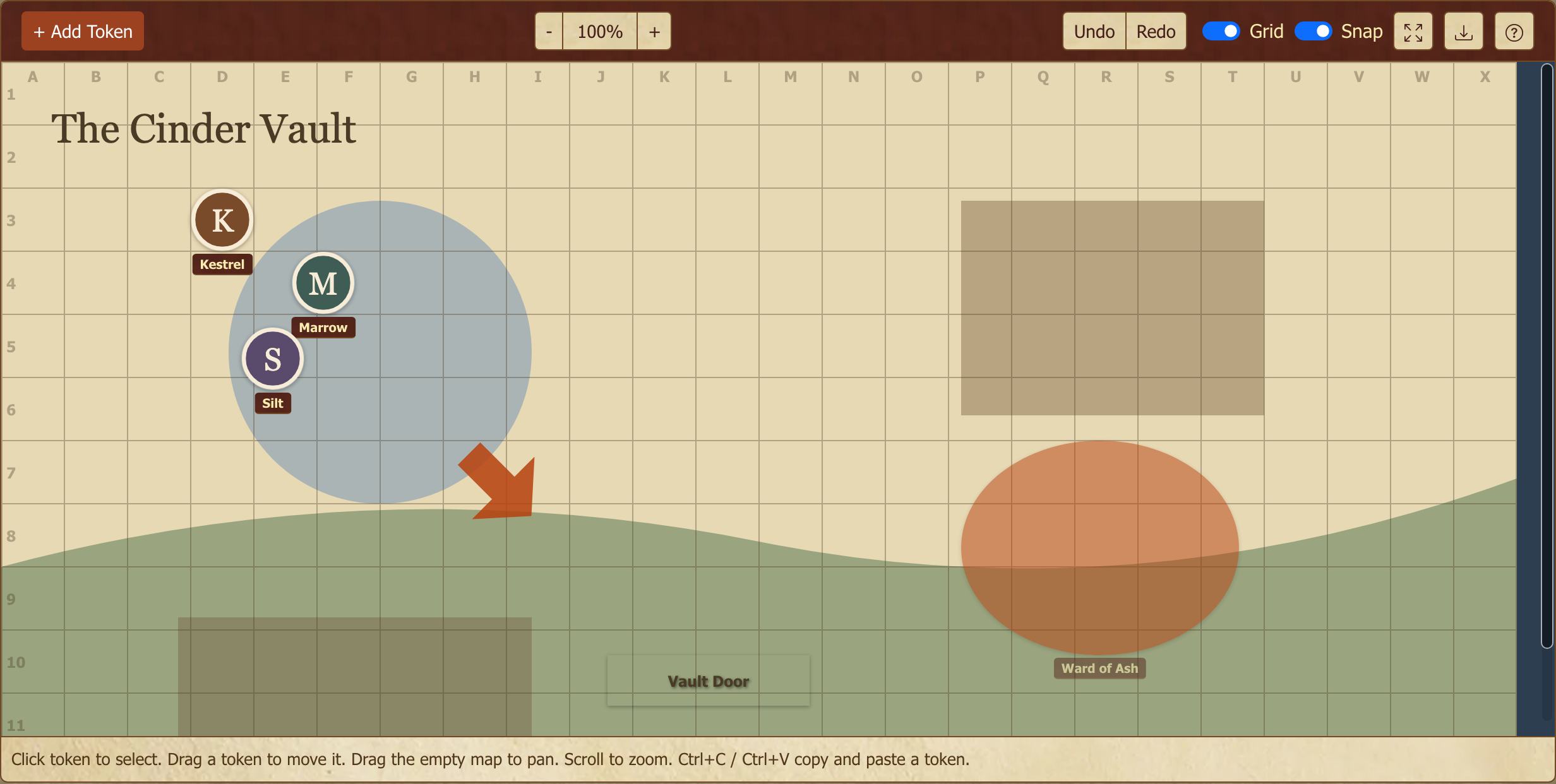
Maps are an interactive canvas — locations, battle scenes, dungeon layouts. Tokens for characters and NPCs, shape overlays for areas of effect and annotations, an optional grid for tactical movement.
Maps are a supporter-tier feature; see Account Settings for what supporter status unlocks.
Creating a map
New Map from the Maps section. Each map starts as a blank canvas you customize.
Background images
Upload a background image as the base layer — a hand-drawn dungeon map, a city plan, a battle grid, a world atlas. Anything that represents the space.
The background dialog has three tabs: Upload a new image, pick one you have already uploaded to the site from My images (no need to download and upload it again), or paste an image address under From URL.
Tokens
Tokens represent characters, NPCs, monsters, or points of interest. Each token has:
- A label or name
- A custom image or solid color
- An optional linked character sheet (one click to view)
The GM can move any token; players can move their own if the GM has turned on Allow players to add tokens in the map's settings.
When you add a token with an image, the picker lists the images you can use. Your own uploads are always there. A game's GMs also see every token image uploaded for that game, so they can prepare encounters ahead of time. Players see only the images already visible on the map they're editing, so the GM's prepared monsters stay a surprise. Search to find public token images other members have shared.
Per-token permissions
Right-click a token and choose Edit Properties. If you own the map or GM a game it's linked to, the bottom of that panel has a Permissions section with two settings that apply to that one token:
Who can move this token
- Only whoever placed it — nobody else can nudge it
- Anyone who can edit this map — free movement, still bounded by the map's write access
- GMs and the map owner only
Who can see this token
- Everyone who can see the map
- Only specific players — pick them from the game's member list
- Nobody — hidden from players
A new token starts as Only whoever placed it. The exception is a token the GM places for a character, which starts as Anyone who can edit this map so that character's player can move it. Change either one from the same panel.
You, the map owner and the game's GMs can always move and see every token regardless — these settings decide what everyone else gets. Tokens that aren't visible to the whole table show up on your canvas faded, with a dashed outline, so you can tell at a glance that your players are looking at a different board. Players don't see that marker.
Overlays
Overlays are shapes, images, and labels drawn on top of the map — circles, cones, bursts, lines, rectangles and arrows for areas of effect and directions, plus text labels and custom images for terrain features or points of interest. Drag, resize, and rotate them to annotate the map during play. Point an arrow by dragging its green rotation handle.
Edit Properties (right-click a token, or use the token's menu in the toolbar) changes a token after you've placed it. That includes its shape: a shape can become any other shape, and an image token can be round or square. Switching to or from a line resets the size, because a line is long and thin.
Label size sets how big a token's name appears under it: Small, Default, Large or Extra large, or Scale with token so a large creature gets a larger label. You can set it when adding a token or later in Edit Properties.
The ? button at the right of the map toolbar opens this section of the guide.
Copy and paste a token with Ctrl+C and Ctrl+V (Cmd on a Mac): select the token, copy it, and each paste adds a copy one grid square further down and to the right. Undo removes a pasted token. Tokens linked to a character aren't copied, since each character has one token on the map.
Moving around the map
Drag an empty part of the map to pan, and scroll the mouse wheel to zoom in or out around the pointer. Middle-click drag and Alt+drag also pan, and Ctrl+= / Ctrl+− zoom. When the map is bigger than its frame, scrollbars appear along the bottom and right edges; drag them to move around. On a touchscreen, drag an empty area to pan and use the zoom buttons in the toolbar.
Grid system
Enable Grid in the map's settings for customizable, snap-to-grid tactical movement:
- Grid columns, rows, cell size, and color (adjustable)
- Snap-to-grid for token movement. The map's default is in its settings, and the Snap switch in the toolbar turns it on or off for your own dragging while you have the map open
- Optional grid labels (coordinates) on the edges
- Scale the background image to fit the grid
Access permissions
Map access is controlled the same way as other resources: the GM grants read access (who can view the map) and write access (who can edit tokens and overlays) separately, from the map's settings. See Resource visibility for what each read setting means — in particular, why a map set to Game Members but linked to no game is visible to nobody but its owner.
Those two settings are the ceiling. Who can see this token and Who can move this token (above) narrow things further, token by token — that's the closest thing to fog-of-war on offer. There's still no per-layer reveal, so for a whole scene you want to stage in advance, separate maps remain the cleaner tool.
[GM]
Maps pay back every minute you spend on them ahead of time. Build the battlefield before the session with your tokens and overlays already in place, and you'll be ready the instant the table arrives. You can improvise mid-scene, but it tends to break the pacing, so a little front-loading goes a long way.
Hidden tokens make that front-loading safe: place the ambush, set it to Nobody — hidden from players, and flip it to Everyone the moment it springs. The faded dashed outline on your canvas is your reminder of what's still concealed.
Downloads
Downloads are community-shared files — a filled-in character sheet others can start from, a house-rules PDF, a battle-map pack, a spreadsheet that does the maths your system won't. They live at their own URL and are shareable outside a single game.
Create one from New Download. The form asks for:
- Title (required) and a Description of what the file is and who it's for.
- Version and Changelog — a download is versioned. When you upload a revision, the version number and the note describing what changed travel with it, so people who grabbed the old copy can see whether they need the new one.
- Game system (optional) — the same system tag Pages carry, so system-specific material is filterable.
- Tags — free-form, for everything the system tag doesn't capture.
- Visibility — who can see it, on the same model as every other resource (see Resource visibility below).
Each download tracks how many times it's been fetched, which is the closest thing the site has to a "was this useful" signal.
Versioning is the reason to use a Download rather than a post attachment. An attachment is pinned to the post that carries it: a corrected copy means a new post, and the old file stays live for anyone who scrolls to it. A Download keeps one URL, so the link you gave out six months ago still resolves to the current file.
Resource visibility
Pages, blogs, maps, downloads, and campaign calendars all use the same set of visibility options. Pick one when you create the resource; change it any time from its settings.
| Setting | Who can see it |
|---|---|
| Public | Any signed-in member of the site. Not visible to logged-out visitors. |
| Game Members | Members of the games this resource is linked to |
| Game GMs Only | GMs and owners of the games this resource is linked to |
| Specific Users | Only the people you name |
| Owner Only | Only you |
"Game Members" means the games this resource is linked to — not the game you happen to be looking at. That distinction is the one that surprises people. A map set to Game Members and linked to your Tuesday campaign stays hidden from someone browsing a different game, even a fully public one, because they aren't a member of the game the map belongs to.
The consequence worth knowing: a resource set to Game Members but linked to no game is visible to nobody but you. There are no members to check against, so nobody passes.
This isn't something you need to repair. The setting is doing what you asked — it's just waiting on a game to point at. Link the resource and members get access immediately, with nothing else to change. When a resource is in this state you'll see a note on its page telling you so, so you're not left guessing why nobody can see it.
To share it, link it to a game:
- From the game's Resources tab, use Link Resource to attach an existing page, blog, map, download, or calendar.
- Or create it from inside the game in the first place, which links it for you.
Blogs and maps created outside a game start at Game Members, so linking them later is all it takes to share them. Pages start at Public — any signed-in member — since pages are more often reference material than campaign-private.
[GM]
The same trap catches archived games. Archiving a game takes it out of the membership checks, so a resource whose only link was to that game quietly becomes owner-only — even though nothing about the resource changed. If you archive a campaign but want its pages and maps to stay readable, either link them to a live game or switch them to Public first.
Next steps
- Forums, Topics, and Posting — back to the basics of posting in a game.
- The Post Editor — the editor reference, including sheet-field placeholders that pull live values from a linked character.
- Community, Messages, and Social — community-wide forums and the social side of the site.