
Recruitment & Application Process
The recruitment system connects GMs looking for players with players looking for games. GMs publish advertisements describing what they're running; players browse, ask questions, and apply; GMs review applications and decide which of those players align best with their game idea. Everything happens in dedicated tabs on the game page forum.
This guide covers both sides. GMs first, then players, then the application-visibility model that ties them together.
For Game Masters
The Recruitment tab
Every game has a Recruitment tab visible to all users. For GMs, this is the primary place to manage your advertisements.
Creating an advertisement
When no advertisement exists, the Recruitment tab shows a blank form. Here are the fields:
Hook Text — a brief, compelling description (300 char max) that is shown in the homepage carousel and game directory. This is your one liner to pitch the game.
Full Details — rich-text description of the game, expectations, and what you're looking for in players. This is the elevator pitch to get players in. Files you attach here (house rules, a setting PDF) are shown below the advertisement to everyone who can see it, including players who haven't applied yet.
Timing — "Always Open" for ongoing recruitment, or specific start and end dates. Times are in your own time zone: an advertisement set to end at 11:59 PM ends at 11:59 PM where you are, and applicants see that moment in theirs.
Grace Period — when recruitment ends (on the end date, or when you end it early), pending applications remain reviewable for this many days (minimum 2) before the advertisement fully closes. This applies to "Always Open" advertisements too.
Application Visibility — controls who can see applications. Three modes:
- Private — only the applicant and GMs can see each application.
- Open — all members can read applications; only the applicant and GMs can reply.
- Interactive — all members can read and reply to applications.
When Advertisement Closes — choose whether pending applications are kept for manual review or auto-rejected when the grace period expires.
Max Players — the maximum player count for the game. Slot count (max minus current players) is shown to prospective applicants.
Discoverable — whether the site promotes the advertisement for you: it appears on the homepage carousel and in the game directory's recruiting tab, and it can be announced to Discord and Bluesky. Turn it off to recruit quietly, sharing the link to your game yourself.
This setting controls reach and nothing else. It does not change who can see the advertisement. Whether or not it is on, anyone who can see your game will find the advertisement on its Recruitment tab, can read the Q&A discussion topic, and can apply.
Recruitment Access — who can read, and who can post in, your game's forums and resources while the advertisement is running. Each is a choice of three:
- Current members only — recruitment opens nothing.
- Applicants only — forums and resources become visible once someone starts an application. This is the default for private and closed games, and it gives applicants enough of a feel to write a good application.
- Anyone who can see the advertisement — someone can look before deciding whether to apply. Signed-in visitors only; nobody reads your game's posts while logged out.
Posting access can never be wider than reading access — nobody can post where they cannot read. Posting choices wider than your reading choice are shown greyed out, and if you narrow reading below the posting choice you already made, posting moves down with it and the form tells you it did.
The reading choice matters even when your game's visibility already lets anyone read its forums (public, open or read-only games). Forums are only half of it: pages, downloads and maps carry their own access setting, and a resource set to Members is not opened by the game's visibility — only by joining, or by this setting. So on a public, open or read-only game, choosing Anyone who can see the advertisement is what lets a prospective player read your character-creation handout before they apply.
Posting is different: in a public game anyone signed in can already post, so the posting choice is fixed there and the form says so.
Discussion Topic Title — optional custom title for the public Q&A topic created when the advertisement publishes.
Advertisement lifecycle
| Action | What it does |
|---|---|
| Save Draft | Saves a draft without publishing it. You can return and edit the contents later. |
| Publish Now | Opens for applications immediately, whatever start date was set — publishing early moves the start date to now, so the advertisement appears in the directory right away. A public Q&A discussion topic is created. |
| Publish Later | Schedules for a future start date. It automatically goes live when the date hits. |
| Update | Saves changes to a scheduled or active advertisement. Once the advertisement is open, its start date can be corrected but not moved into the future. |
| Cancel Scheduled Publication | Returns a scheduled ad to the draft state. |
| End Early | Stops new applications now. You choose between starting the grace period (the default) or closing the advertisement now, which can also reject all pending applications. |
| End Grace Period | Closes an advertisement that is already in its grace period. Optionally, this can reject all pending applications. |
When an advertisement's end date passes, or you end it early and start the grace period, it enters a grace period. No new applications are accepted. Pending applicants keep the forum access the advertisement gave them and can still post in the Q&A discussion topic, so you can finish reviewing. When you end early, the grace period counts from that moment. When it expires, the advertisement closes.
When an advertisement closes, by any route, pending applicants lose the forum access it gave them (they keep their own application thread), and the Q&A discussion topic is locked. Close it outright only if you are finished with the people still waiting.
Announcements
When an advertisement goes live, the site announces it to the community Discord and Bluesky feeds and notifies members who follow your game's system. To keep those feeds readable, each game is announced at most once a week — if you close an advertisement and publish a replacement a few days later, the replacement publishes normally but is not announced a second time. A genuinely new recruitment round weeks later is announced as usual.
Turning off Discoverable withholds the advertisement from those announcements, so an advertisement you are not promoting is never posted to Discord or Bluesky. It still runs, and people who can see your game can still find and apply to it.
Bluesky caps posts at 300 characters and counts the link against that limit, so the announcement leads with your game's name and link and then carries as much of your hook as fits. A long hook is trimmed at the end — the link to your game is always included. Write the hook so its first sentence or two can stand alone.
Previous advertisements
A dropdown in the Recruitment tab header lists closed advertisements. When viewing a previous one with no current ad active, Use as Template creates a new draft pre-populated with the previous ad's settings, except for the dates which will be blank.
The Applications tab
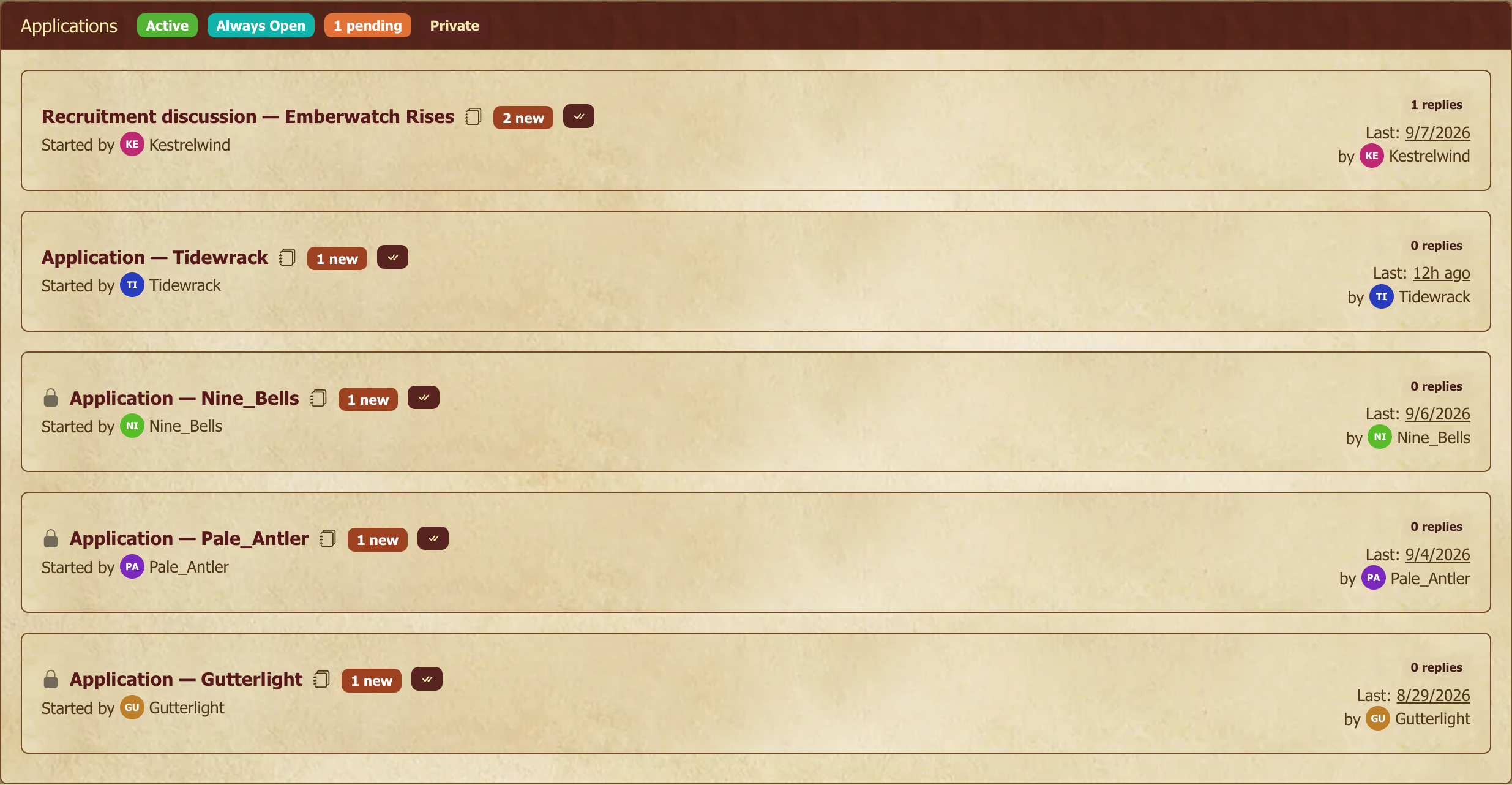
The Applications tab shows all activity related to the current advertisement:
- The discussion topic card appears first, which is the public Q&A thread where prospective players ask questions before applying.
- Application cards follow each linking to the applicant's discussion thread for review, follow-up questions, and the eventual approve/reject.
A dropdown switches between current and previous advertisements' applications.
The tab header shows the advertisement's status badge, pending application count, and the application visibility setting.
Reviewing applications
For each application:
- Approve — accept the player. Pick the role to assign (Player, Reader, or Assistant GM). They join the game immediately.
- Reject — decline the application. Optionally include a message explaining why — most players genuinely want feedback.
- Pending — leave it while the conversation continues. Pending applications stay open until the advertisement closes or you decide.
Changing your mind
A rejection isn't permanent. The Unreject action on a rejected application returns it to pending status, restoring the applicant's access and reopening their discussion thread. Useful when a candidate's circumstances change, when you've reconsidered after talking with the table, or when you simply clicked the wrong button.
An approval is permanent in the sense that the applicant becomes a full member the moment you click Approve; there's no one-click "un-approve" for someone you've already approved. To remove someone you approved by mistake (or who turned out not to be a fit), use the Members tab to remove them from the game. You can learn more at Game Master's Guide. Their application thread stays in the record permanently.
Re-applications
A rejected applicant can submit a new application after the initial rejection, as long as the advertisement is still open. Useful in long recruitment windows where a player's character concept evolves or new slots open up. Pending and approved applications block new applications from the same user. They need to be in a decided-and-closed state first.
Closing recruitment
Once you've filled your roster, use End Early. If applicants are still waiting on a decision, start the grace period rather than closing outright, so they can keep talking to you in the forums and the Q&A thread while you decide. You can reopen recruitment later if a slot opens up, or save the configuration as a template for the next recruitment round.
Rejected applicants keep reading (and following) your game's forums through the grace period, then lose that access when the advertisement fully closes. At that point, and whenever you remove a member who doesn't retain access, their follows for the game are cleared automatically, so they stop receiving notifications for content they can no longer read.
For Players
Finding games
The Games page defaults to the Recruiting tab, so every game with an active advertisement. Each card shows:
- Game name, system, genre
- The advertisement's hook text
- A View Ad button → the game's Recruitment tab
- Your relationship to the game (if any): Your Game, Applied, or Member
The homepage Looking for Players carousel also highlights recruiting games. If you've already applied to one, the carousel shows View My Application instead of "Apply."
Viewing an advertisement
View Ad (or Apply from the carousel) takes you to the game's Recruitment tab. You'll see the full advertisement:
- The GM's detailed description
- Any files the GM attached, listed under Attachments
- How many slots are open
- When applications are due
- When decisions will be made (end date plus grace period)
If the game's accepting applications and you haven't already applied, an Apply Now button appears at the bottom.
Applying
Apply Now opens the application form. Write a thoughtful introduction — see Finding and Joining a Game for what tends to land well. Submit. Then:
- Your application creates a private discussion thread just between you and the GM (with its visibility depending on the advertisement's setting).
- The game shows up in My Games under the Applicant section, so it's easy to keep an eye on.
- If the GM has opened the game's forums to applicants, you get member-level access to its forums and resources the moment you start an application: read the existing posts, get a feel for the table, and write yourself a stronger application because of it. Some GMs open the forums to anyone who can see the advertisement, in which case you can read before applying at all.
After applying
- Continue the conversation in your application thread. Questions, character iterations, sample posts. This is for whatever the GM and you want to work through.
- Link a character sheet to your application when you're ready.
- Set your progress status (Concept, Work in Progress, Ready for Review) to signal where you are.
- Withdraw your application anytime if you change your mind. No penalty, no awkwardness — GMs appreciate honest withdrawal more than ghosting.
When a decision is made
- Approved: you become a full member with the role the GM assigned you. Your application thread locks at that point, since it's now part of the game's history. Welcome aboard.
- Rejected: the thread locks (it stays on the record), and the GM may leave a message on the way out. Try not to take it to heart, since most GMs are juggling far more applicants than they have open seats. If the GM granted applicants forum access, you keep on reading and following the game's forums right through the grace period, which is the review window that runs after the advertisement's end date, all the way until recruitment finally closes. You also hold on to your own application thread.
Following and notifications after you leave a game
Your follows are tied to games you can actually open, so they're cleaned up automatically when that access ends:
- A rejected application — when recruitment fully closes (the grace period ends, or the GM ends it early), your read access to the game's forums ends, and any topics, forums, or the game itself that you were following there are removed from your Follows — so you stop getting notifications for posts you can no longer read.
- Leaving or being removed — if you leave a game (or a GM removes you) without keeping read access, your follows for that game are cleared.
- Your own application thread is the exception — you always retain access to your own application, so that follow stays.
Application visibility
The GM chooses one of three visibility levels when creating the advertisement. This determines what other players can see on the Applications tab:
| Setting | Who sees application cards | Who can post in application threads |
|---|---|---|
| Private | Applicant and GMs only | Applicant and GMs only |
| Open | All game members | Applicant and GMs only |
| Interactive | All game members | All game members |
The discussion topic (Q&A thread) is always visible to all game members regardless of this setting.
Private is the right choice when applicants are sharing sensitive concepts or the game is small and private; Open is the default friendly choice for most public recruitment campaigns; Interactive turns the application thread into a community thread, useful for collaborative-table games where everyone weighs in.