
Creating Your Account & Setting Up Your Profile
This guide walks through registration, logging in, and the first round of profile setup that allows you to sign up for games or run your own.
Registering
Click Get Started or Register on the landing page. You'll provide:
- Username — Your identity on Myth-Weavers. It appears on every post you write, your profile, and everywhere else you show up. Pick one you can live with for a while. (Rename requests are possible later via the username change flow; it is important to pick a good one the first time though, name changes can be lengthy.)
- Email address — Used for login, password recovery, and email notifications.
- Password — A strong password is recommended. For added security, you can layer two-factor authentication on later — see Account Settings.
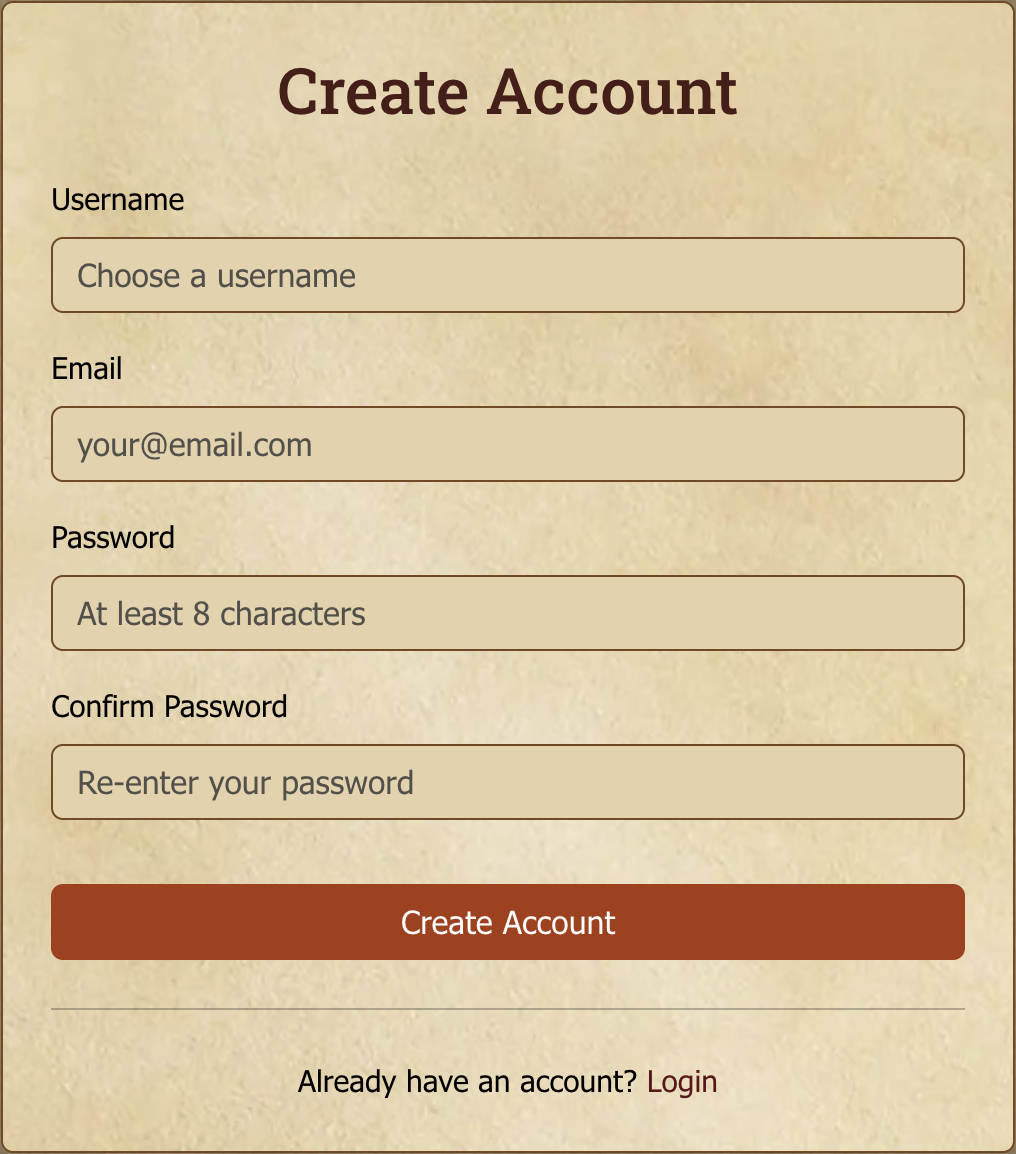
Once registered you're logged in and dropped at the home page.
Logging in
Click Login in the navigation bar. Username or email, plus password. If you've set up two-factor authentication, you'll be prompted for a TOTP code after the password.
Forgot your password? Forgot Password on the login page asks for your email address first. If you've set up recovery questions, you can answer one and choose a new password right there. Otherwise, or if you'd rather, press Email me a reset link and follow the link we send to that address.
Setting up your profile
Hit Account Settings from the nav menu and select the Profile section.
Profile picture
Three paths, in priority order:
- Upload an avatar — Recommended. Click "Upload New Avatar" and pick a square image (at least 200×200px, 2 MB max). Faces, character portraits, or memorable symbols all work; pick what feels like you.
- Gravatar fallback — If you don't upload anything, Myth-Weavers looks up your email on Gravatar.
- Generated initials — If neither is available, an avatar is generated from your username's initials.
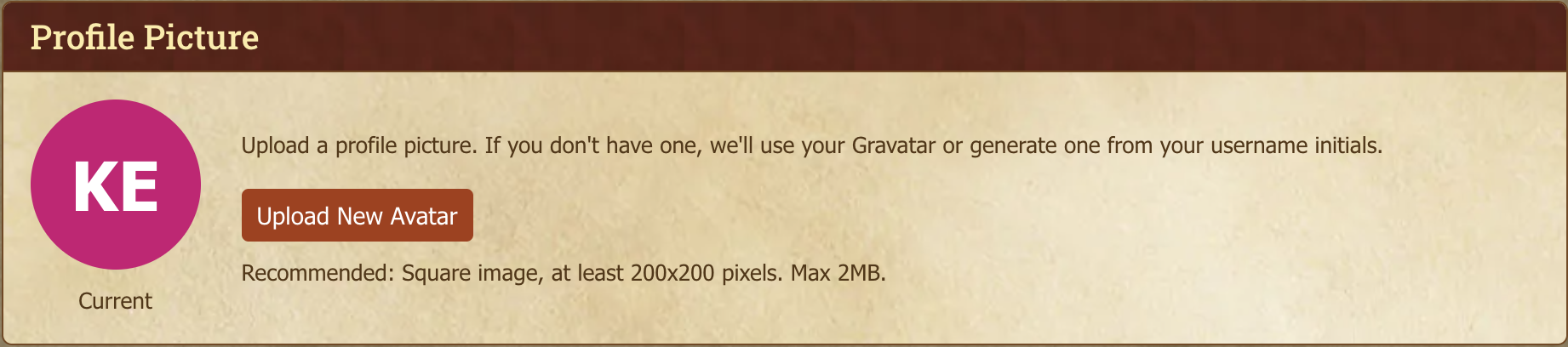
"Remove Avatar" reverts you back down the fallback chain anytime.
About Me
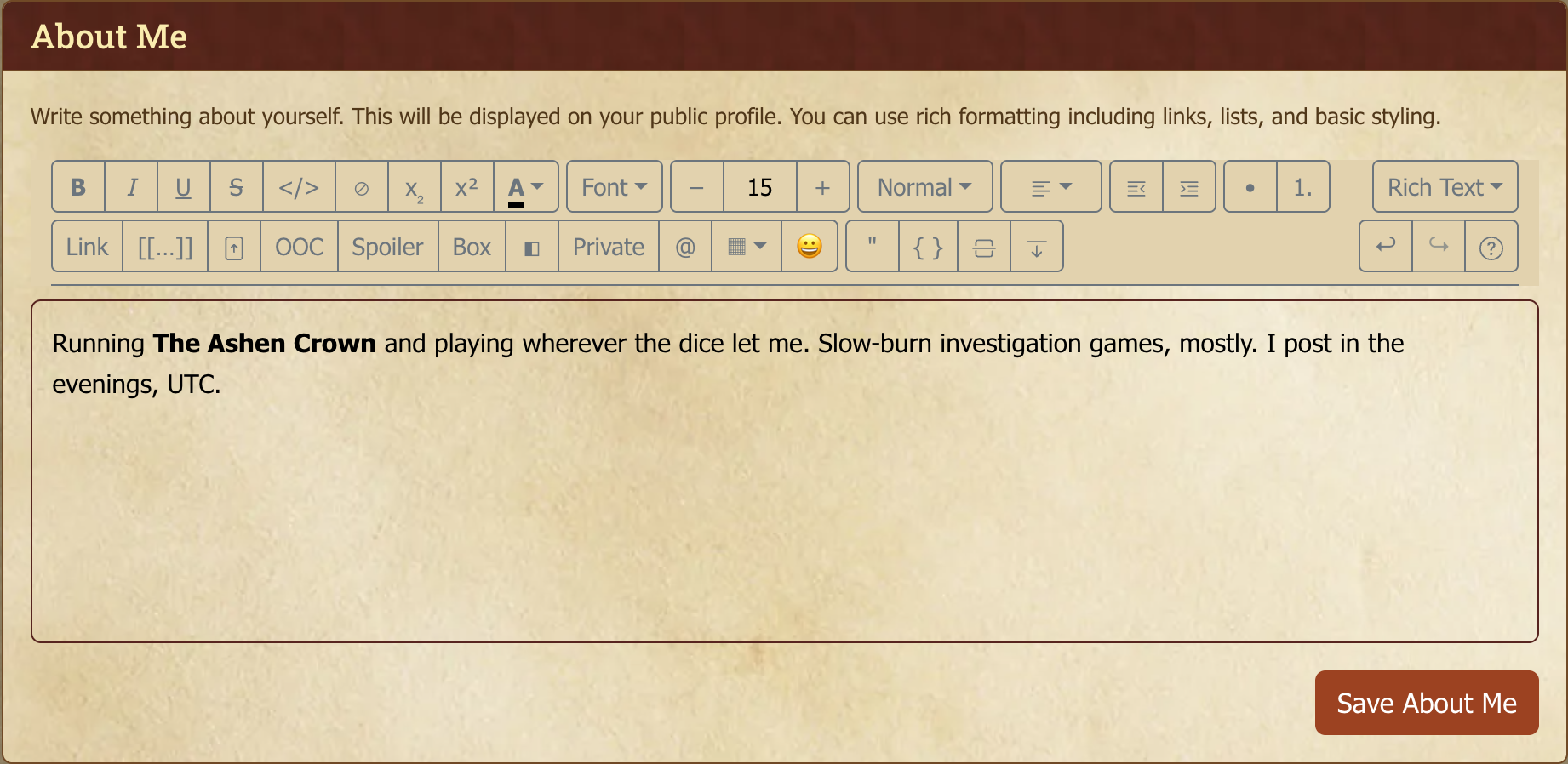
A few sentences in the About Me field goes a long way for GMs evaluating applications. Hobbies, what games you've enjoyed, what kind of stories pull you in, how patient you are with scheduling. It's a vibe-check, so that others can see if they match up with your interests.
The About Me uses the rich text editor, so you can drop in links, lists, and basic formatting.
Signature
Below About Me, the Signature card lets you write a short block that appears below every one of your posts. The signature editor supports all four editing modes, (Rich Text, Markdown, HTML, or BBCode) so you can pick whichever you're comfortable with. Whichever mode you save in is the format the signature stays in until you edit it again.
Some etiquette:
- Keep it short. Long signatures repeat on every post you make and quickly become visually noisy. A line or two is plenty. Readers can turn signatures off entirely in their Content preferences if they find them distracting.
- Don't put critical information in your signature. Anyone with signatures disabled (or anyone reading on a narrow mobile viewport that collapses them) won't see it.
- Imported signatures from the old site are preserved. If you had a signature on Baldr, it's already loaded, and you can edit it from the same card. Imported BBCode signatures will open in BBCode mode by default; imported HTML signatures in HTML mode.
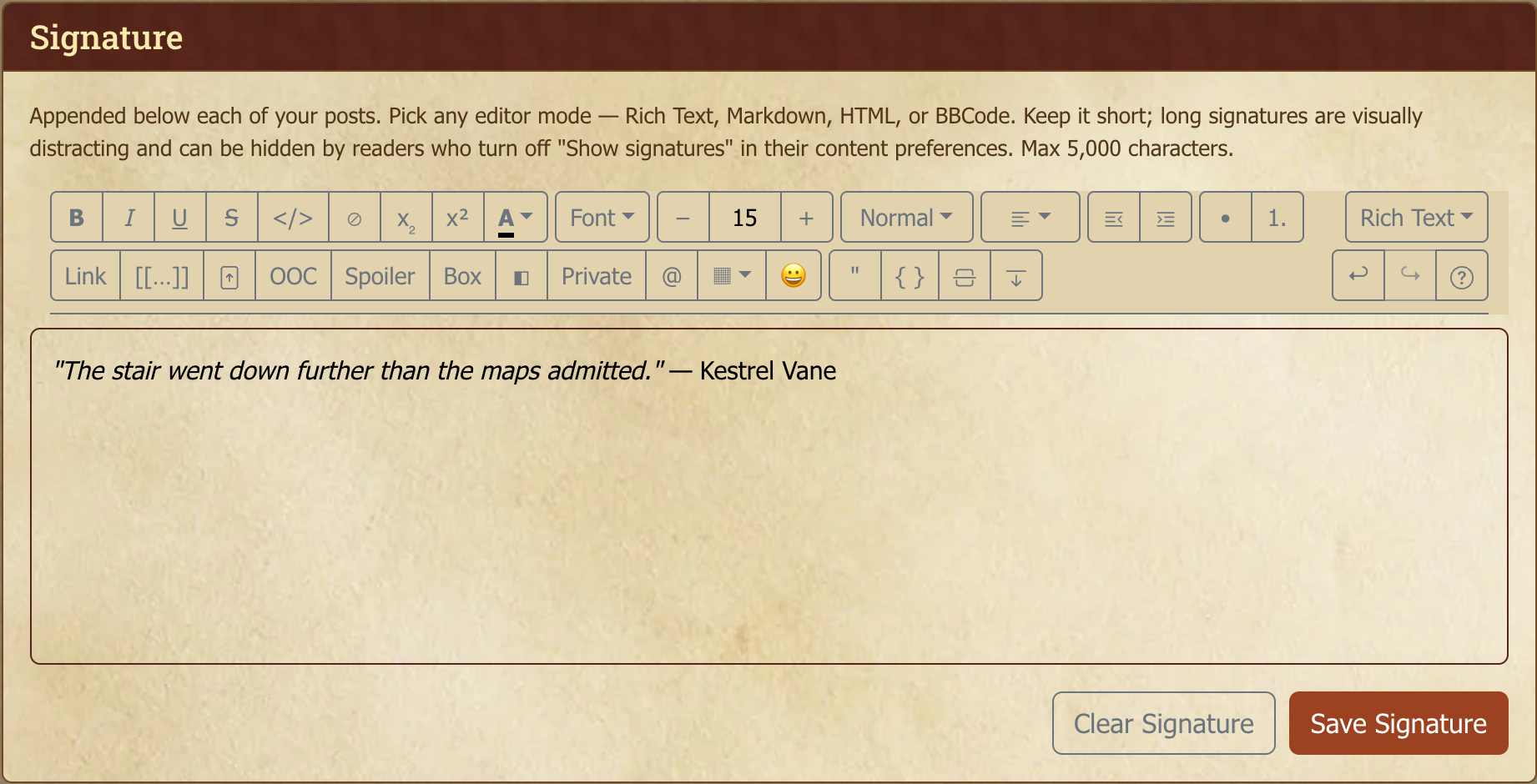
If you'd rather not see your own signature on every post you make, the Hide my signature on my own posts switch in Content preferences hides it from you alone, and other readers still see it normally.
To leave your signature off one post for everyone, tick Don't show my signature on this post in the composer, under the visibility selector when replying, or when starting a topic. You can change it later by editing the post. In-character posts are the usual case.
A GM can also hide signatures for everyone in a whole forum or topic. If your signature doesn't appear somewhere, that's probably why.
Density
If you'd like more on screen at once, set Density to Compact in Account Settings → Content. Compact tightens the vertical spacing of forum topic lists (about a third more topics fit) and of the space between posts in a thread. Column widths don't change, and posts themselves look exactly the same. Comfy is the default.
Choosing your editor mode
Still in Account Settings, the Editor section is where you pick your default posting mode.
Myth-Weavers ships with three editor modes, and you can switch between them on any given post:
- Rich Text (default, recommended) — A WYSIWYG editor with toolbar buttons for formatting, images, tables, and the PBP-specific blocks (OOC, spoilers, whispers, fieldsets). Best for most writing.
- Markdown — Standard Markdown syntax with a live preview pane. Comfortable if you've been writing for GitHub, Reddit, or Discord for years.
- HTML — Raw HTML, for when you want full control over the markup. Sanitized on submit.
Legacy BBCode posts carried over from the old site still render perfectly, and you're free to keep writing in BBCode if that's where you feel at home. It just isn't one of the three default mode toggles. See The Post Editor for the full BBCode reference.
Markdown, HTML and BBCode all write markup by hand, and all three share one editing surface: syntax highlighting that follows your theme, undo/redo buttons, and a Write/Split/Preview toggle. See Writing in source for the details.
In Account Settings > Editor each mode has three settings:
- Default: the mode every new post, reply, and edit opens in. Exactly one mode holds this spot at a time.
- Available: kept in the editor's mode switcher so you can flip to it on a per-post basis, even though it isn't your default.
- Hidden: taken out of the mode switcher altogether. Set the modes you never touch (Markdown and BBCode, say) to Hidden and your toolbar gets that much tidier.
You can't hide your default mode, and hiding a mode never touches your existing posts. Editing a post always offers up whatever mode it was written in, so you can still open and tweak an old BBCode or Markdown post even when that mode is hidden from the switcher.
Quick Reply
Also tucked into Account Settings > Editor is "Open the Quick Reply box automatically when a topic loads." It's on by default, so the Quick Reply box at the bottom of a topic sits open and ready for you. Turn it off if you'd rather it start collapsed, in which case it expands when you click its header or when you quote a post. That keeps long topics from pushing the reply box way down the page. Either way, expanding a collapsed box drops your cursor straight into the editor, ready to write.
Mode-switch warning
Switching a post between modes can shift some of its formatting. The clearest example is going from HTML to Rich Text, which drops any markup the visual editor can't represent. So by default, switching pops up a confirmation that spells out what might be affected. If you switch modes constantly and don't need the nudge, tick "Don't show this again" in that confirmation, or flip "Don't warn me before switching editor modes" over in Account Settings > Editor. Switches will then happen instantly, and you can bring the warning back anytime from that same setting.
Next steps
Now that your account is in shape, Finding and Joining a Game is the next page. If you're returning from the old site, Welcome Back from Baldr covers the migration specifics.